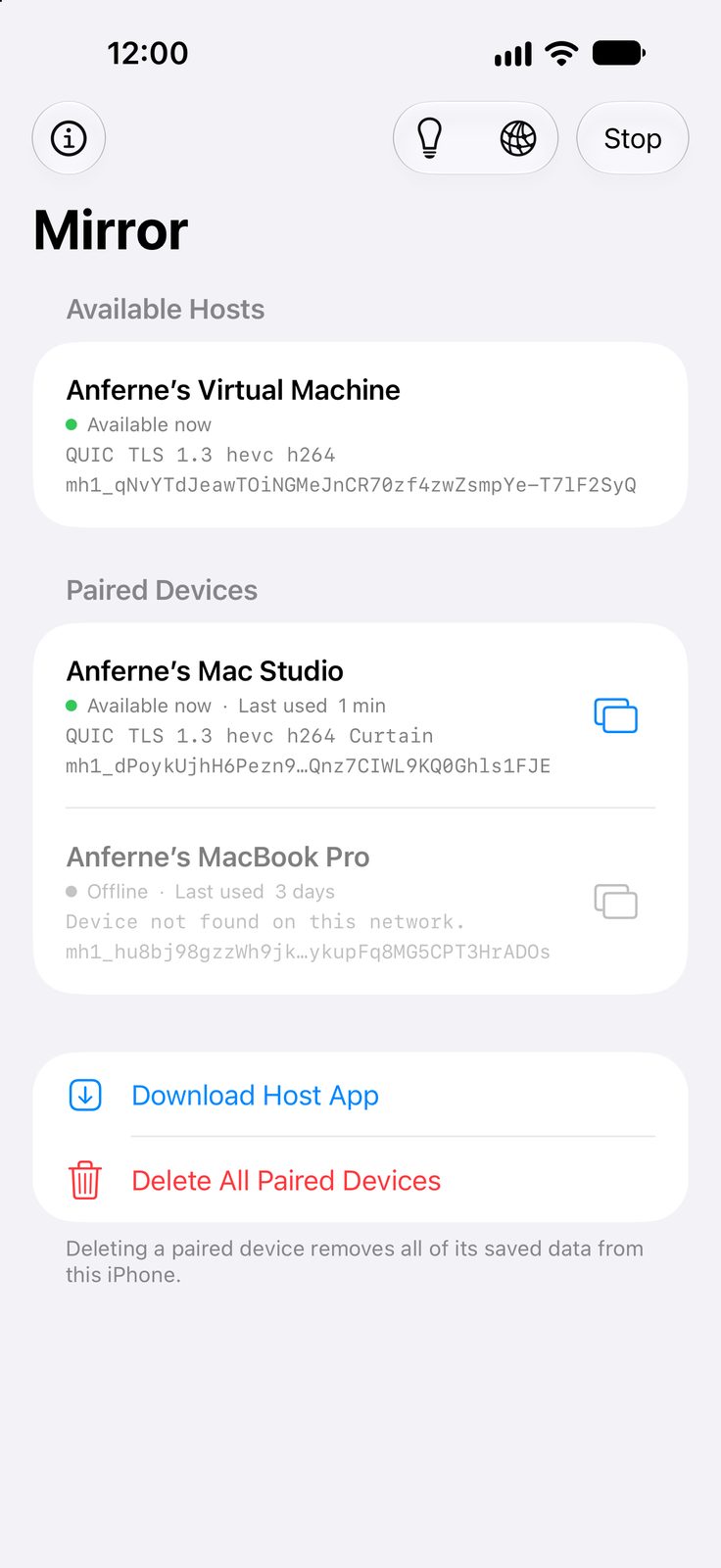
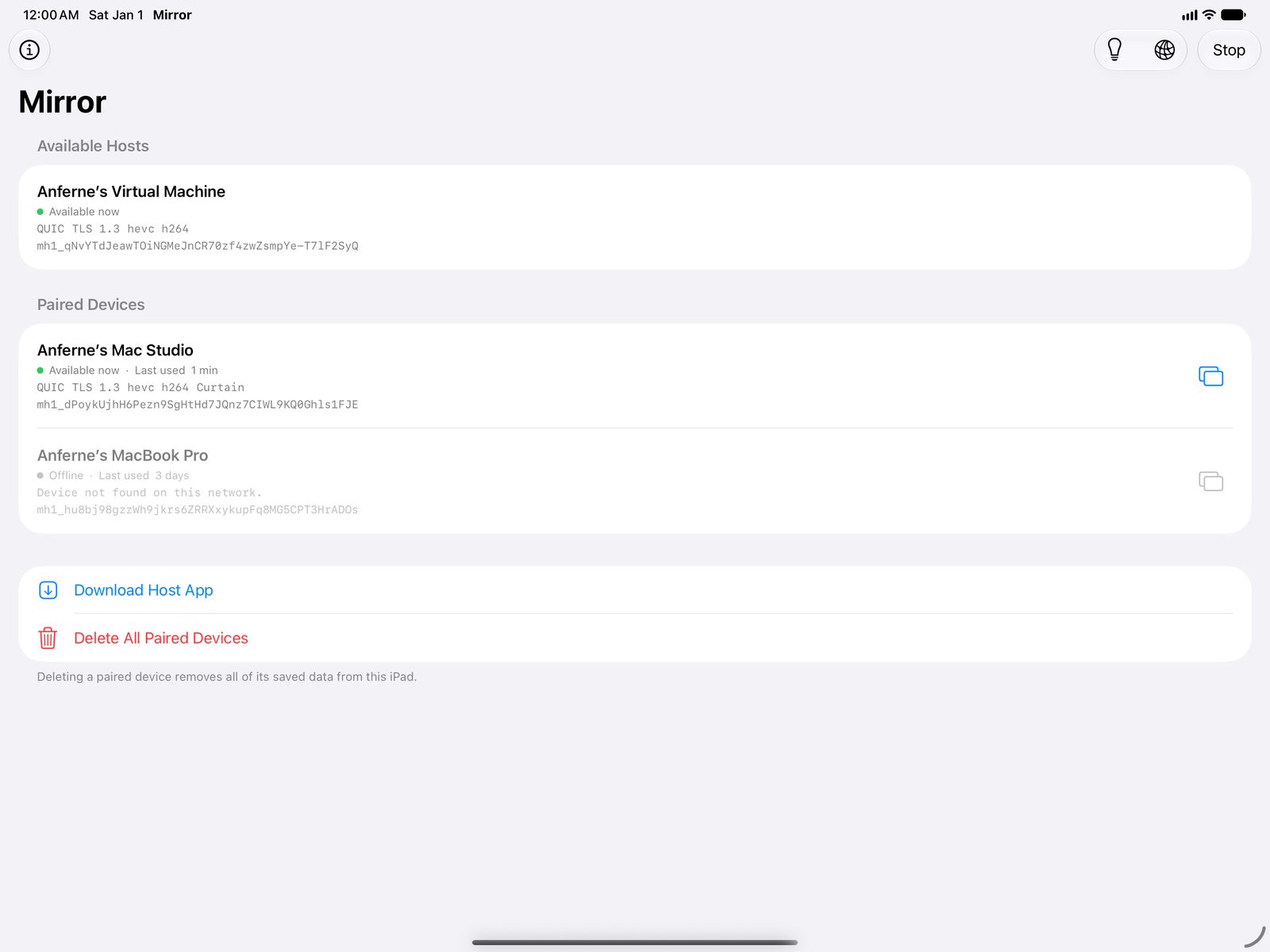
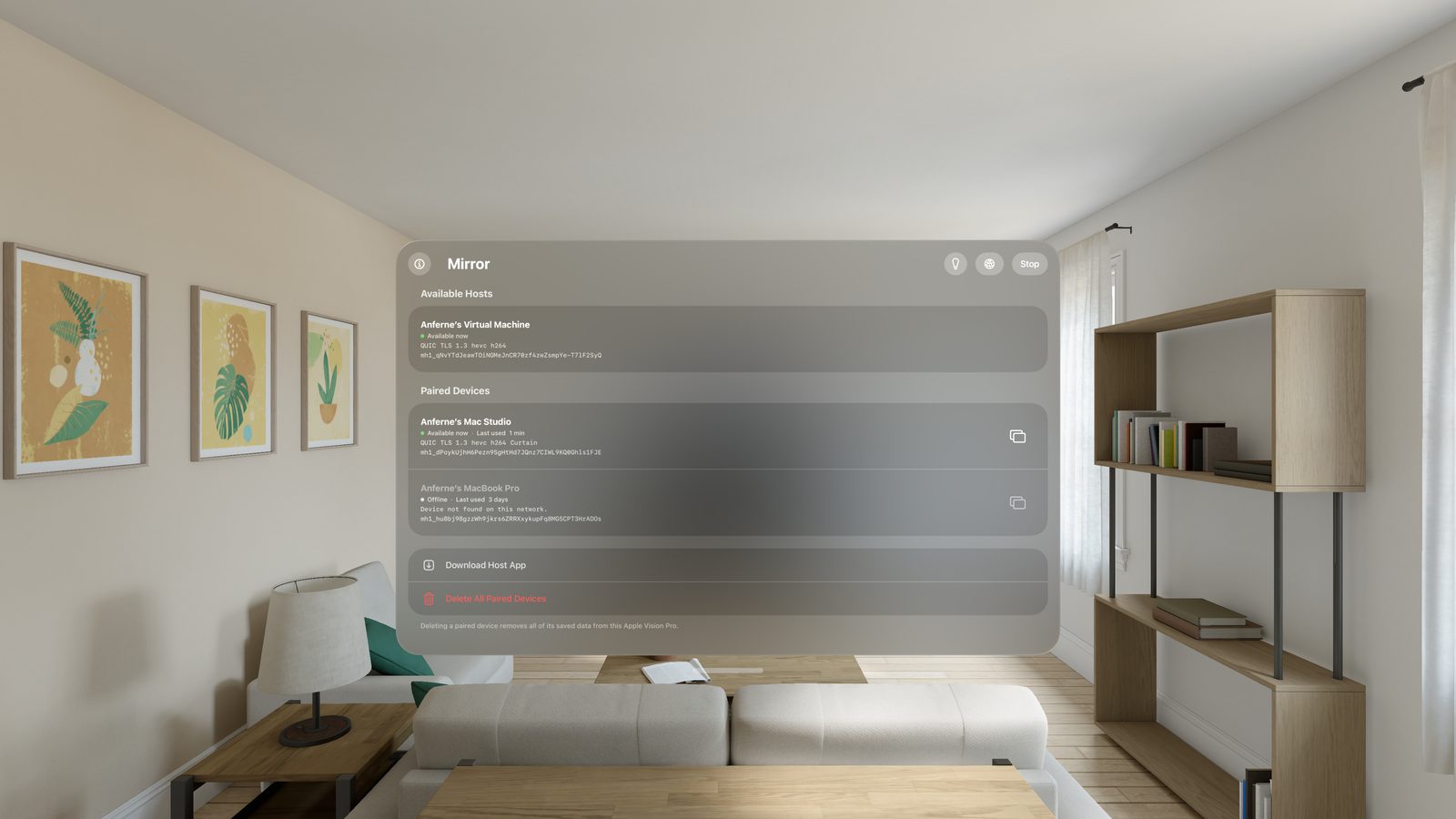
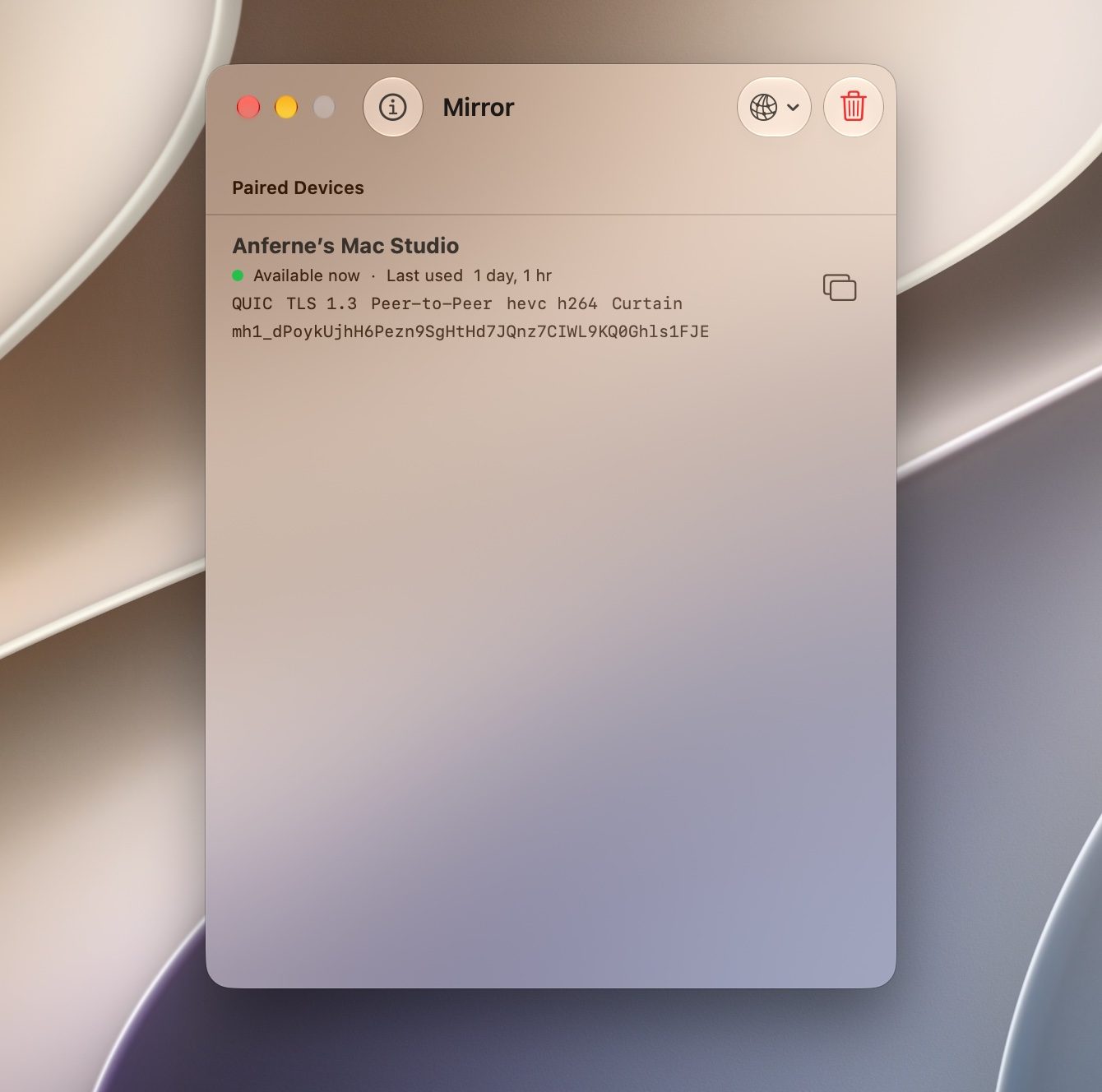
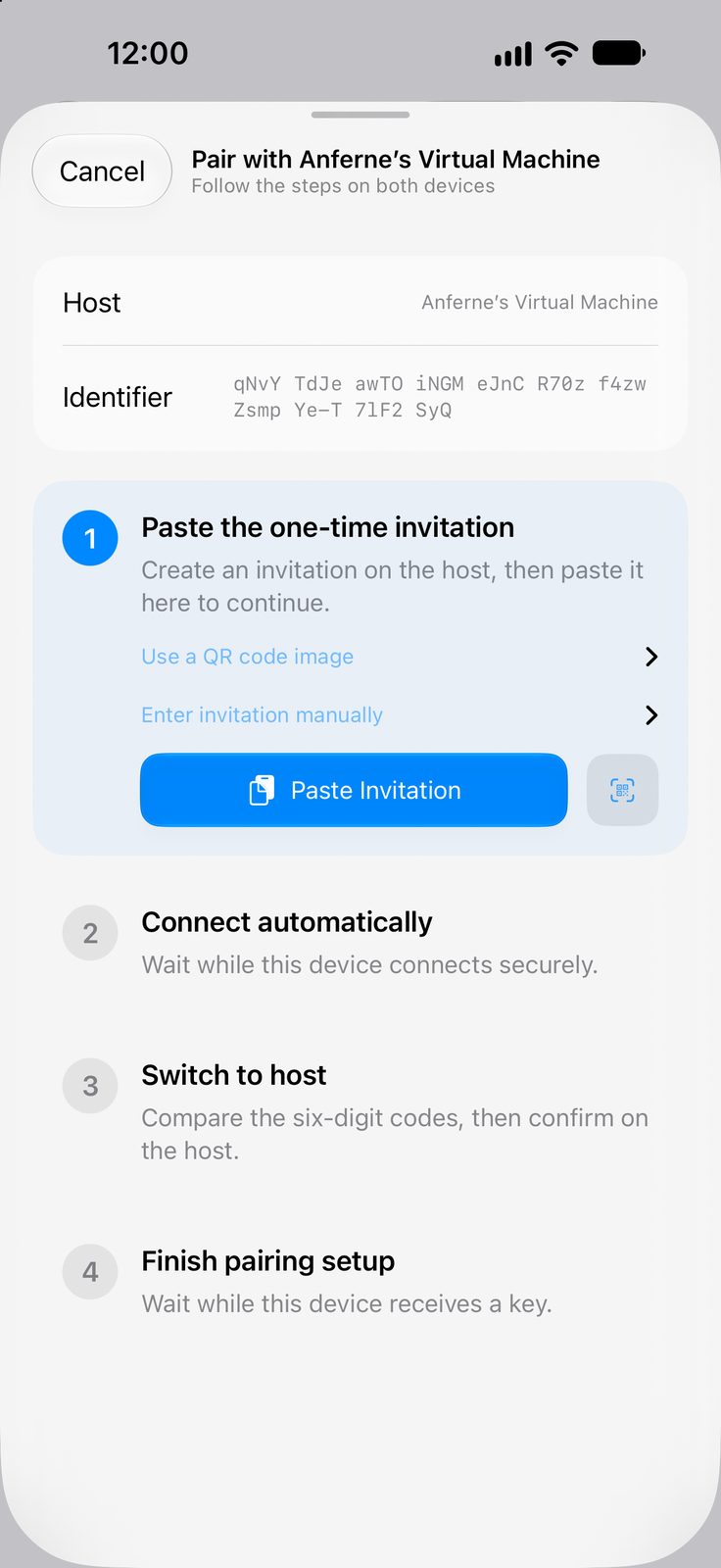
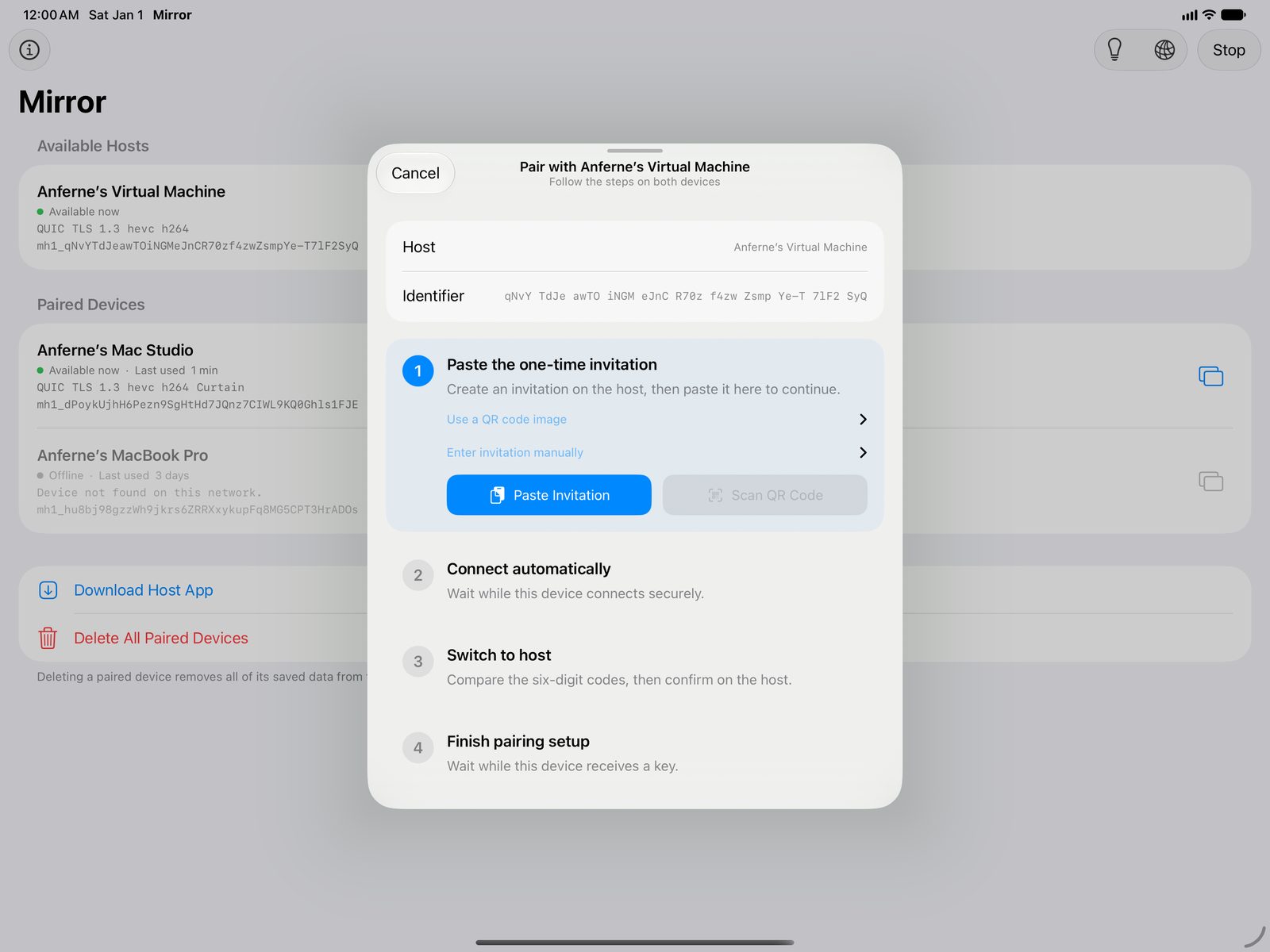
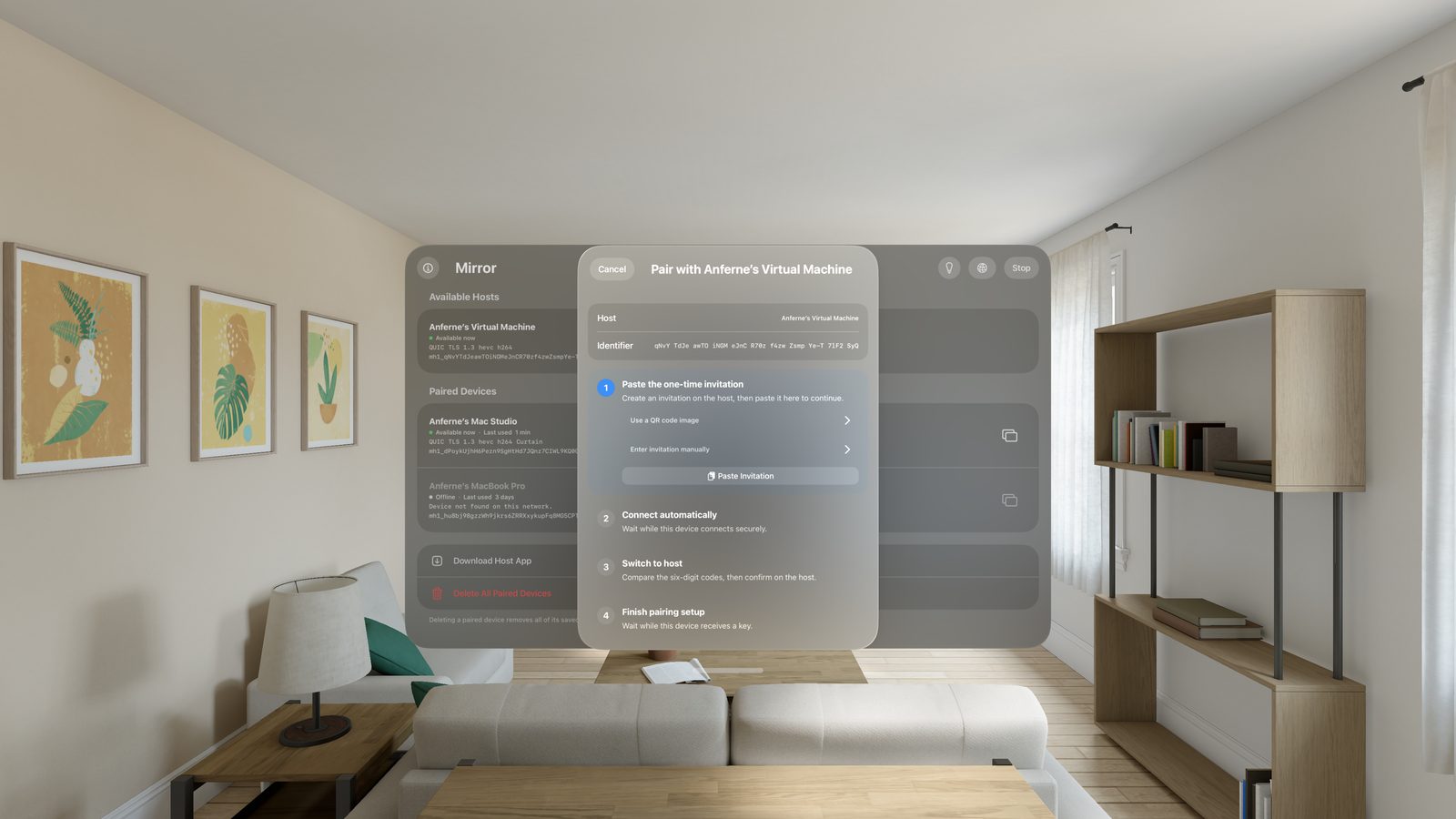
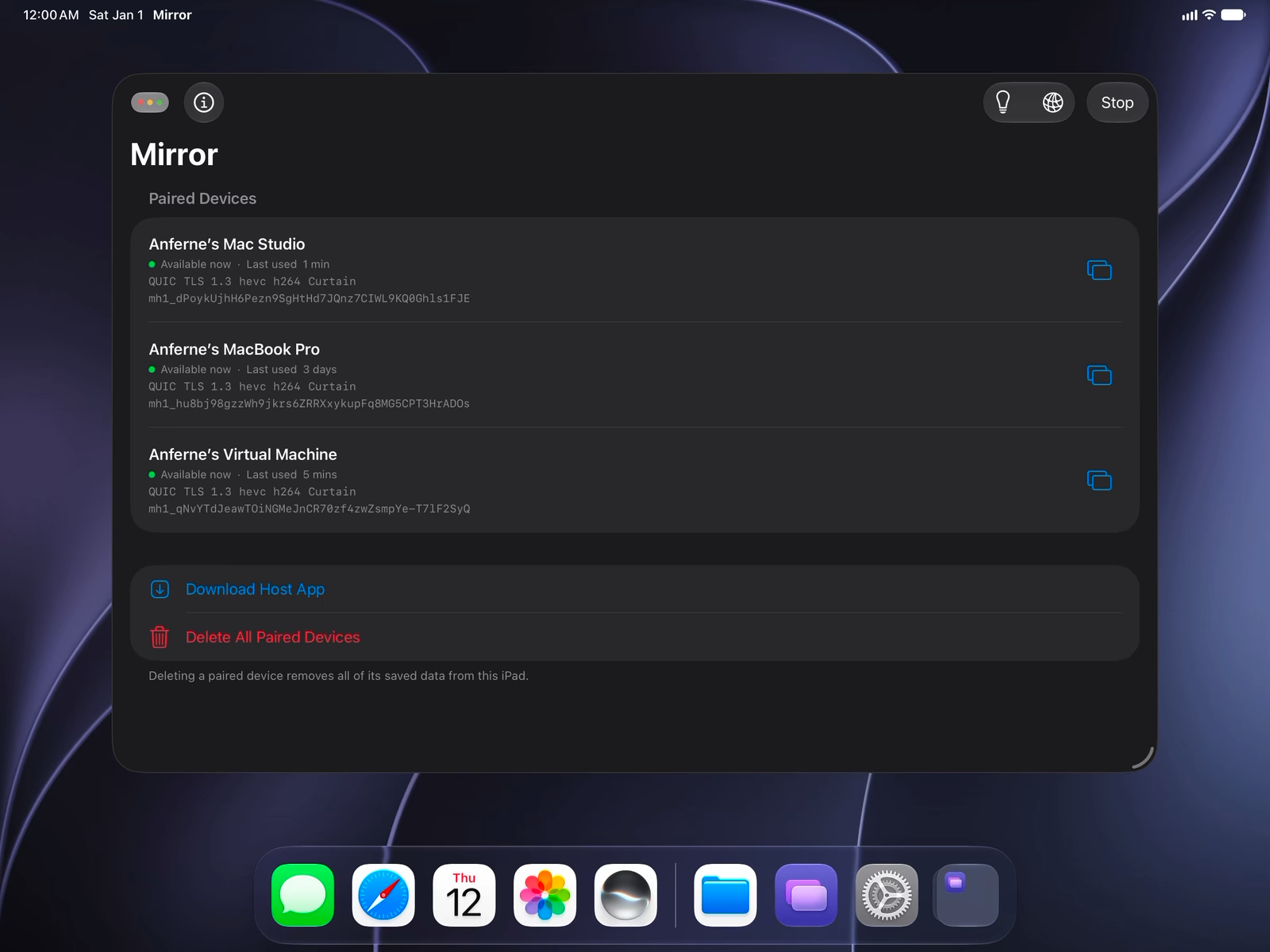
Host ListMacs available nearby and the devices you’ve paired.
iPhoneiPadApple Vision ProMac
PairingPair with a short-lived invitation and a code shown on both devices.
iPhoneiPadApple Vision Pro
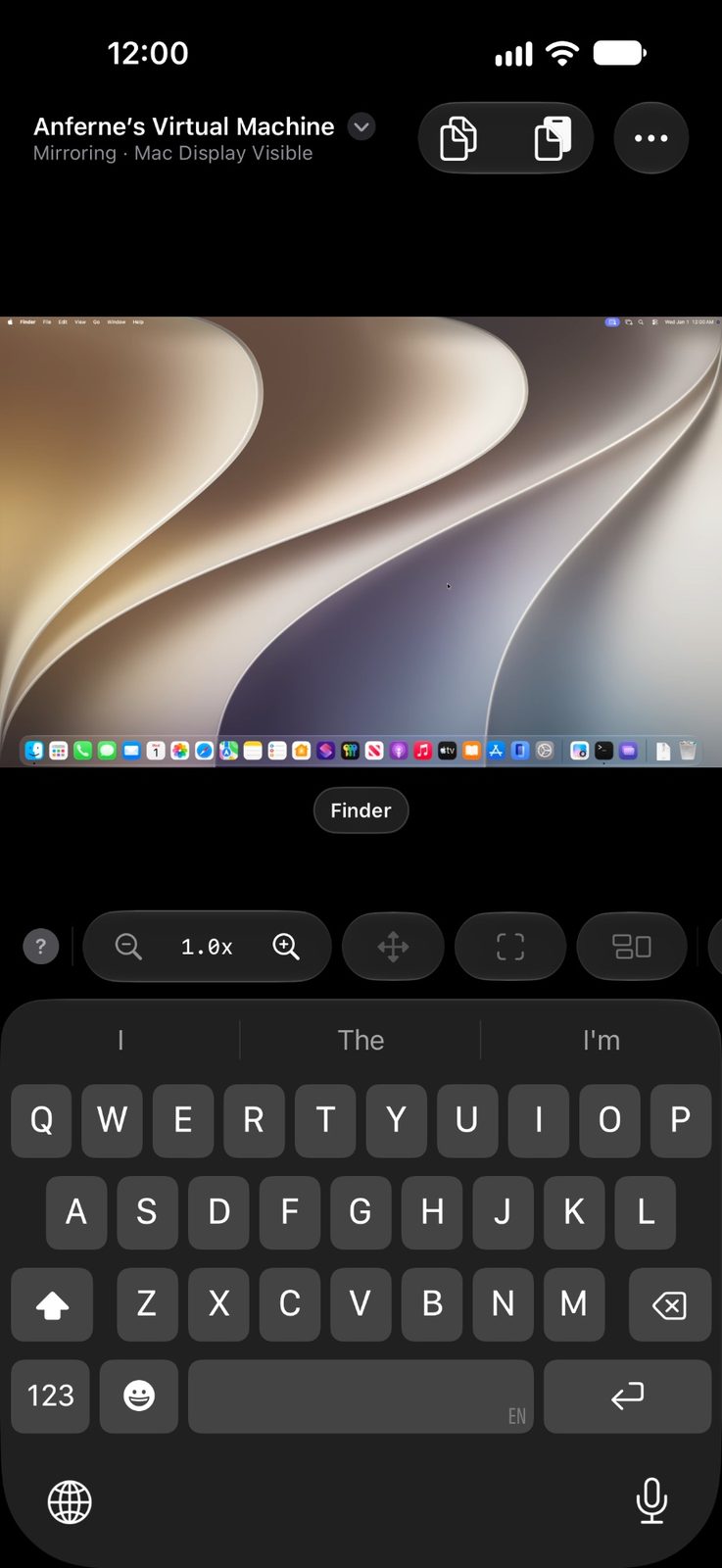
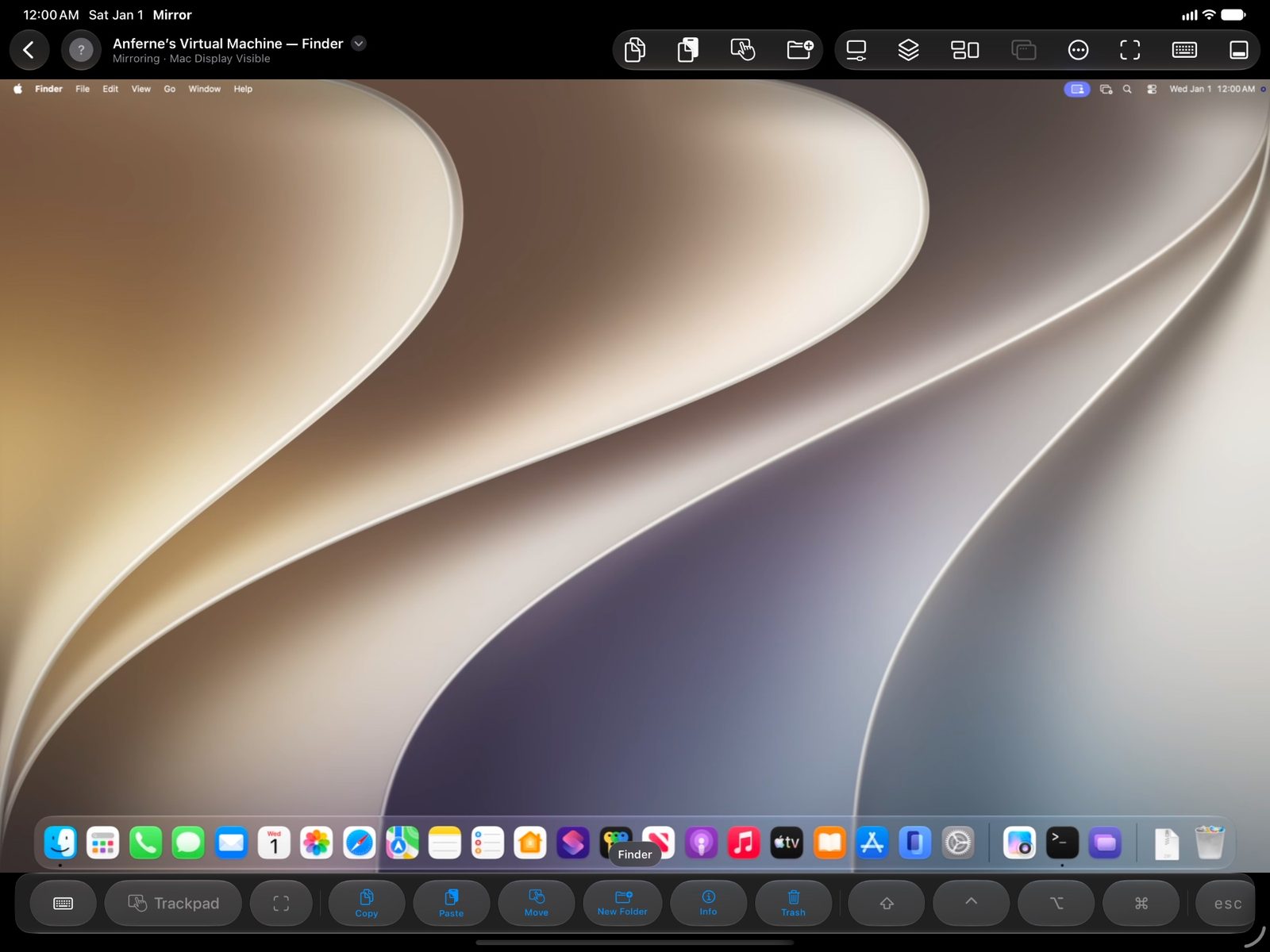
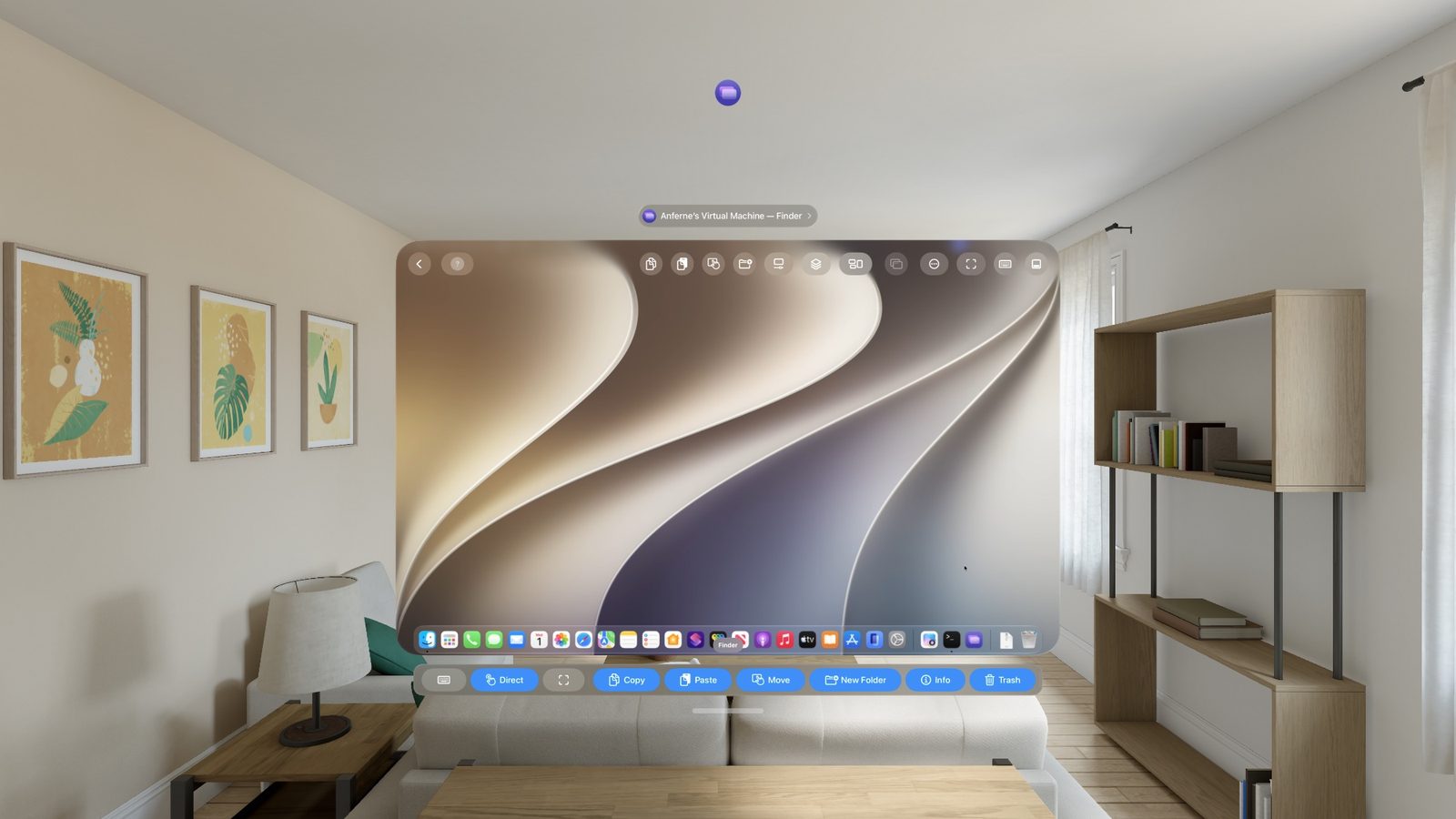
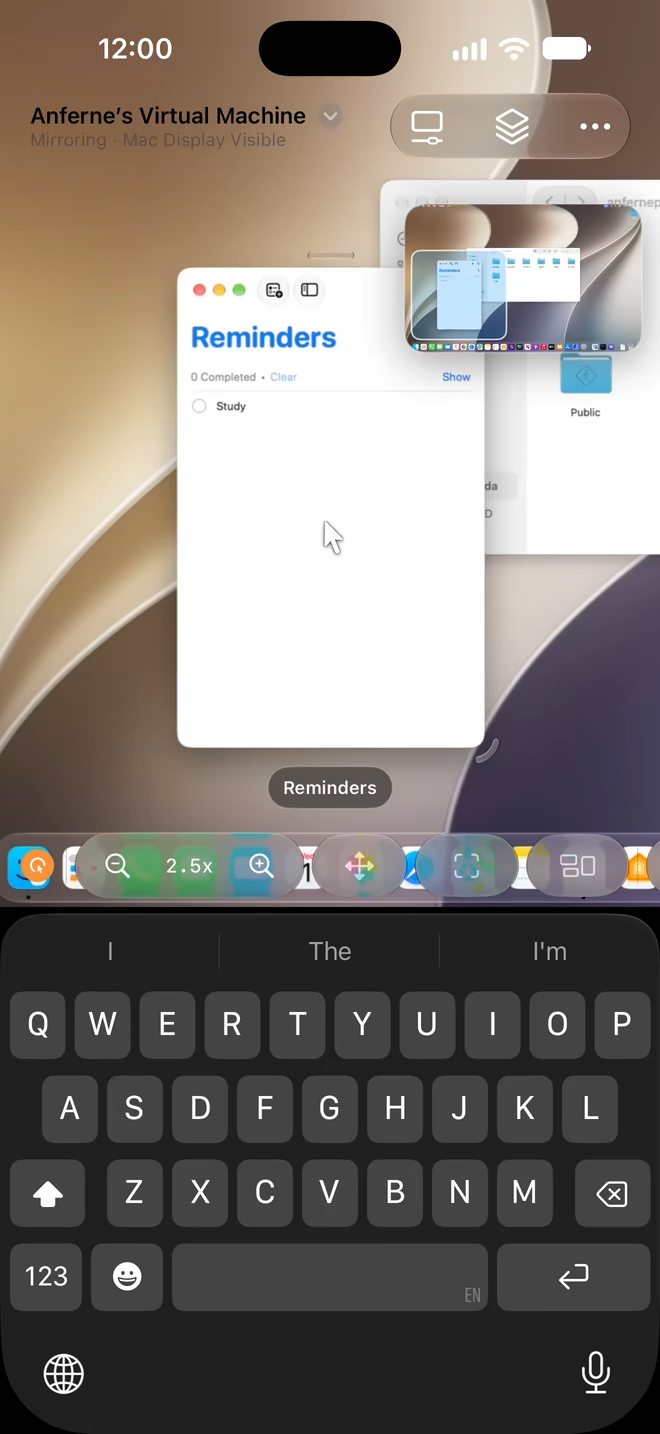
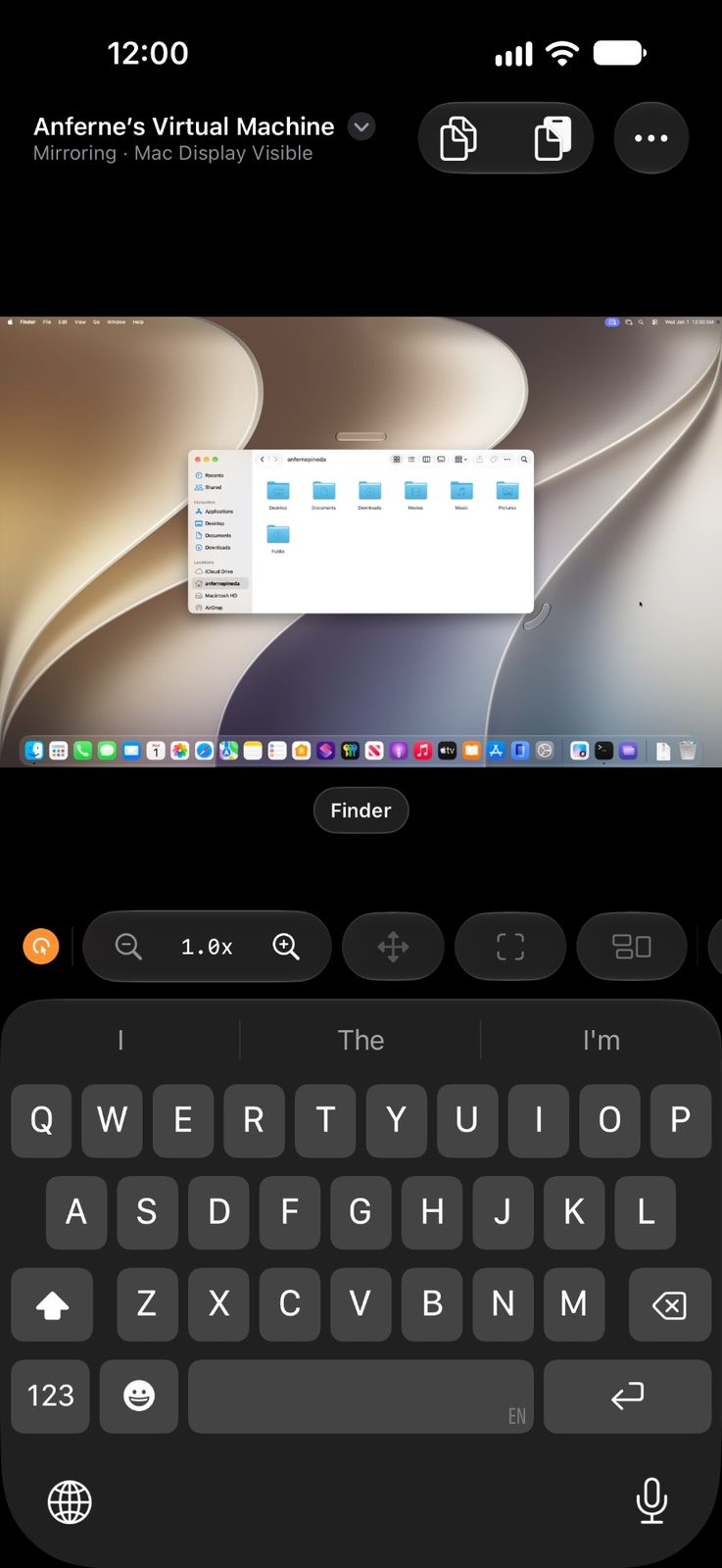
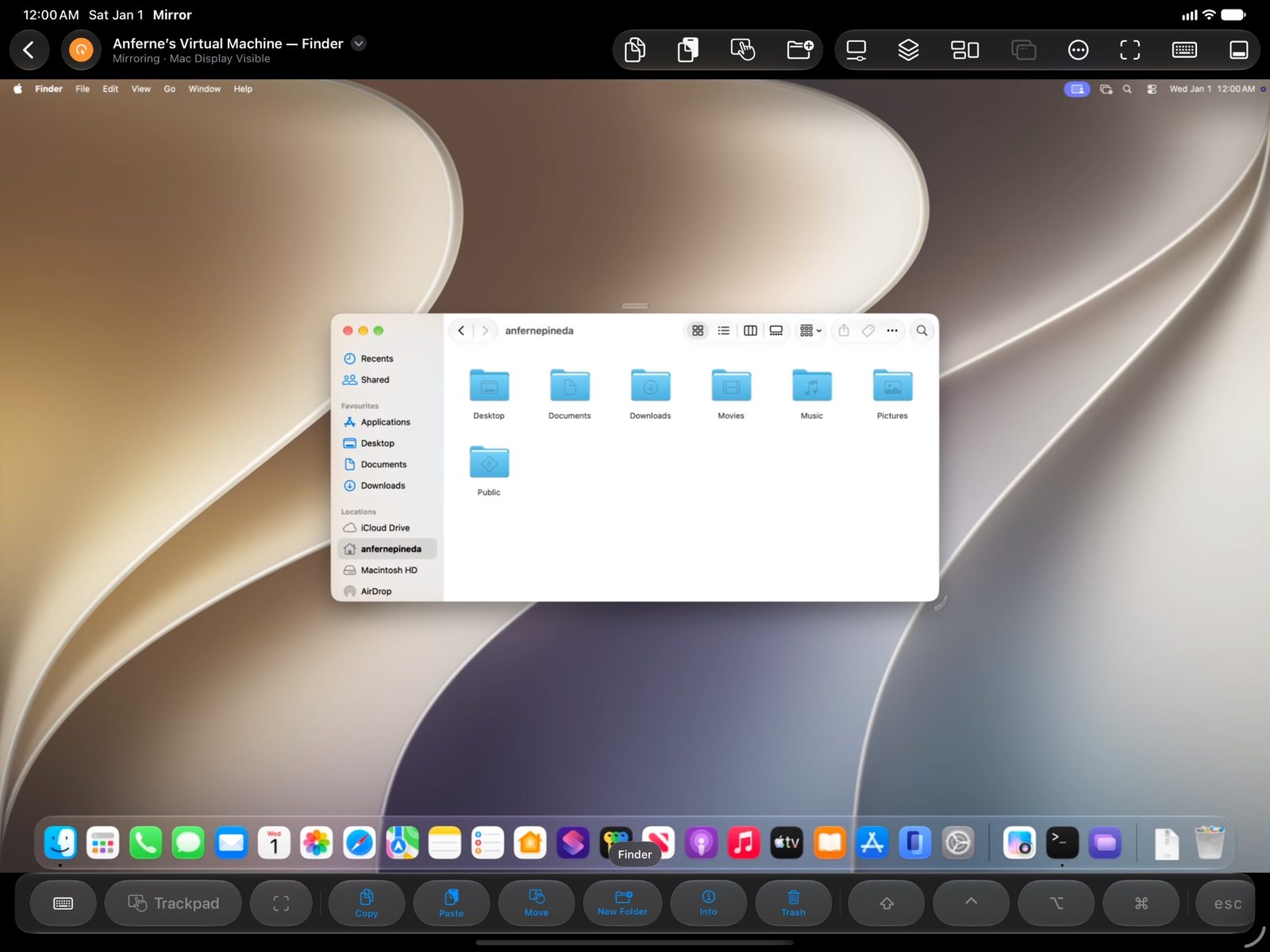
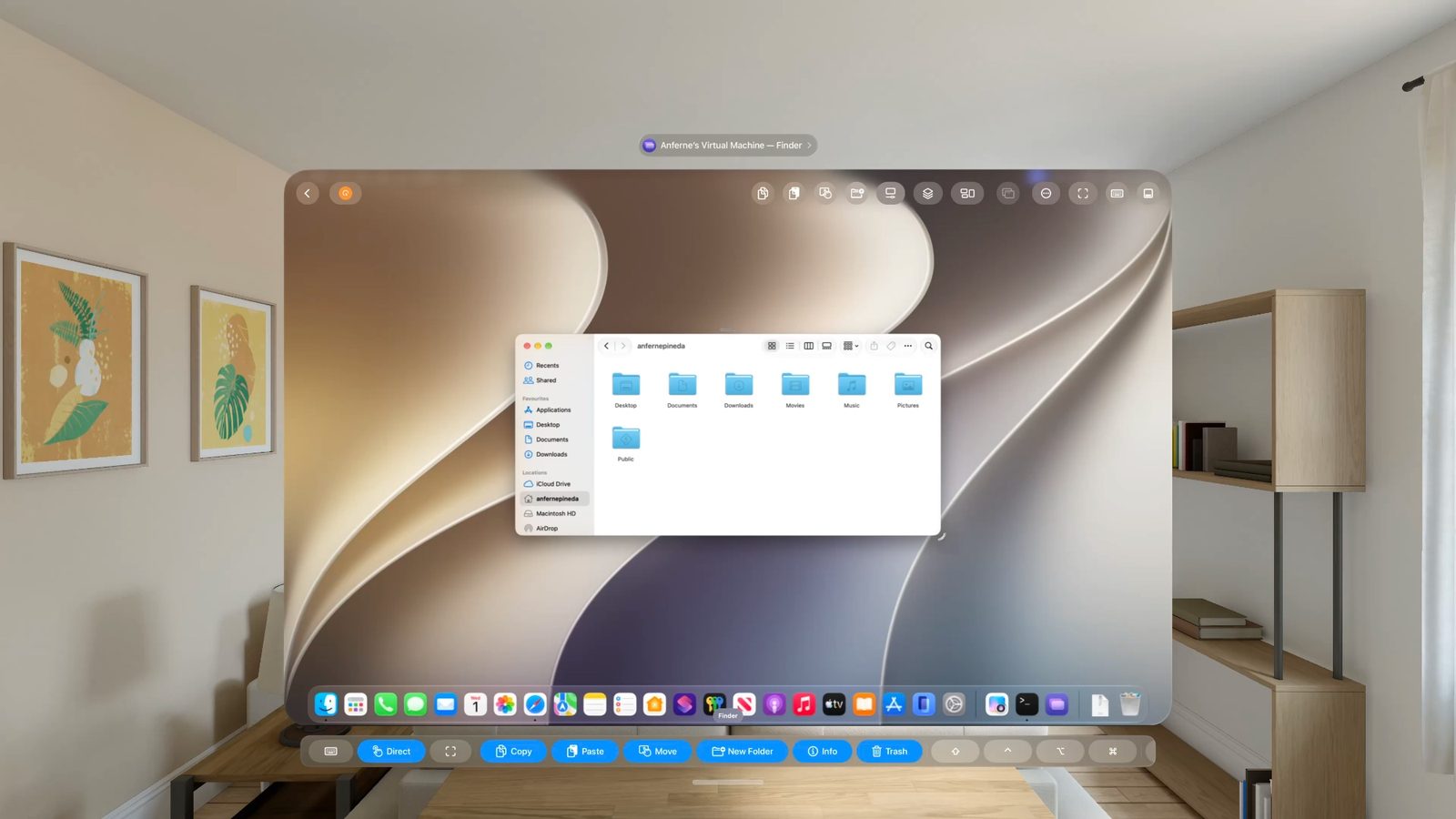
Remote DisplaySee your Mac’s screen and zoom in.
iPhoneiPadApple Vision ProMac
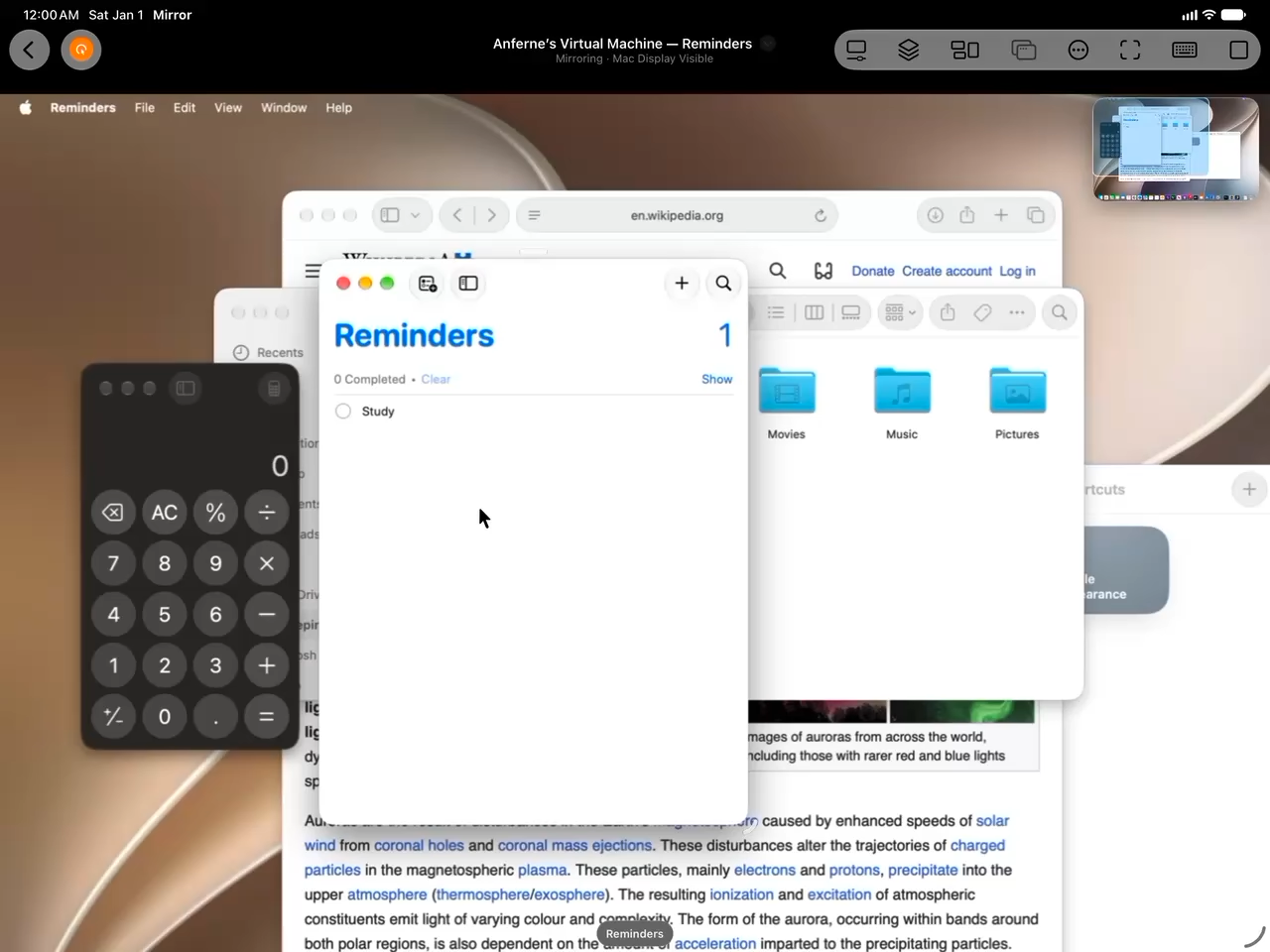
Window ControlsTraffic-light buttons and move and resize handles for managing Mac windows by touch.
iPhoneiPadiPhoneiPadApple Vision Pro
Lock OnDouble-tap with five fingers to lock onto the frontmost app’s window. While locked, pinching and panning leave the view in place.
iPad
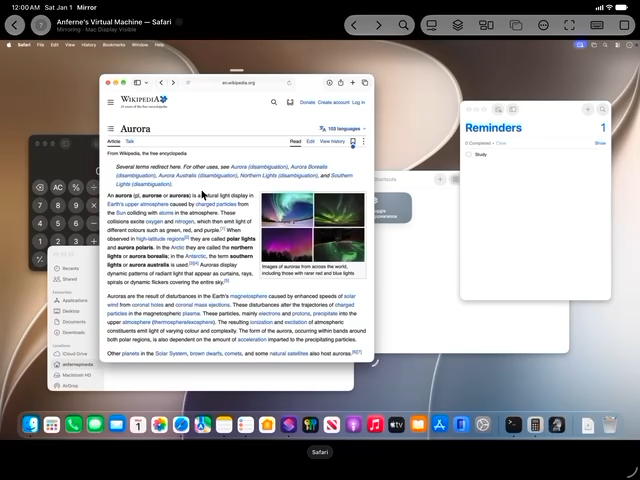
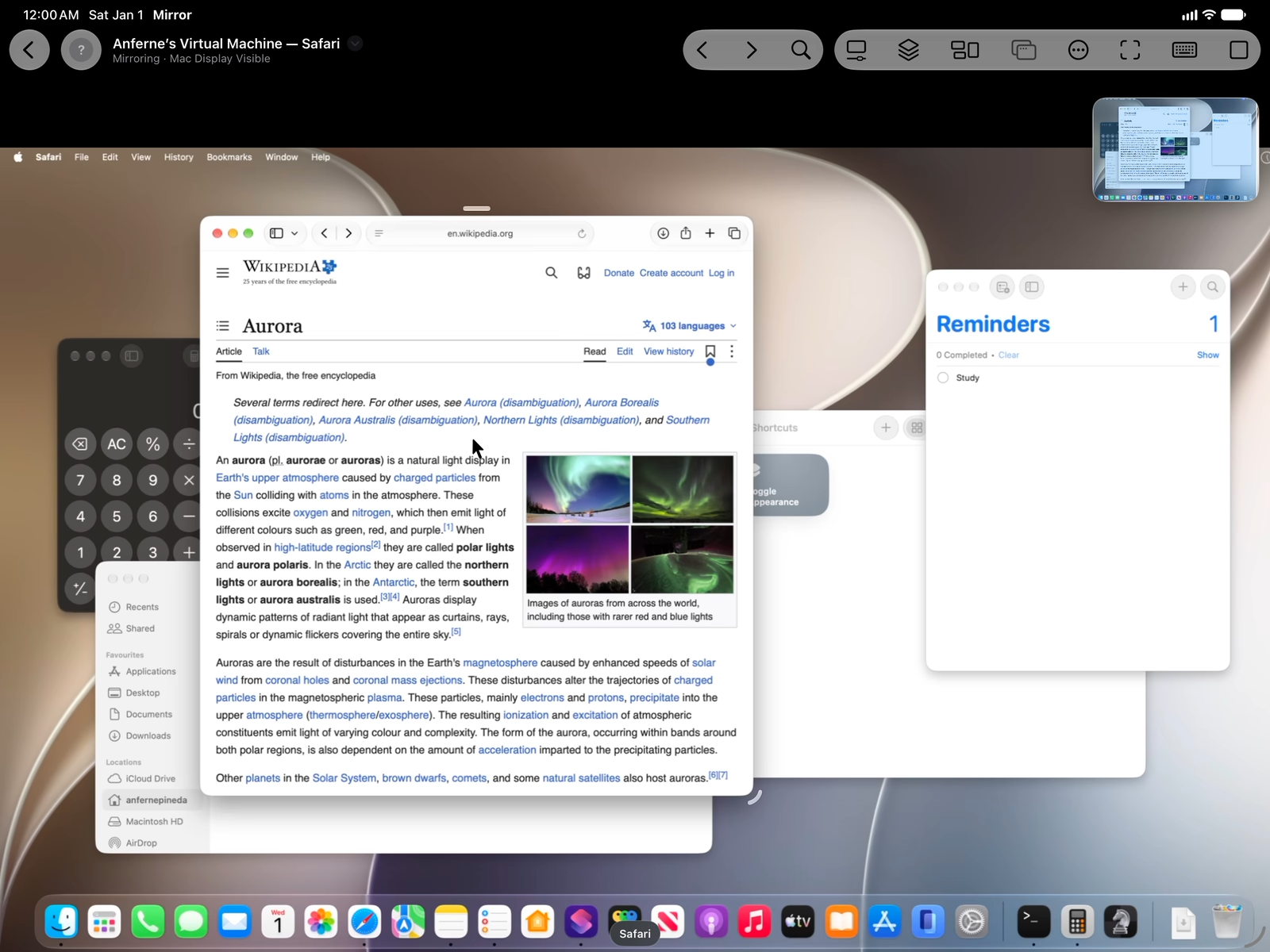
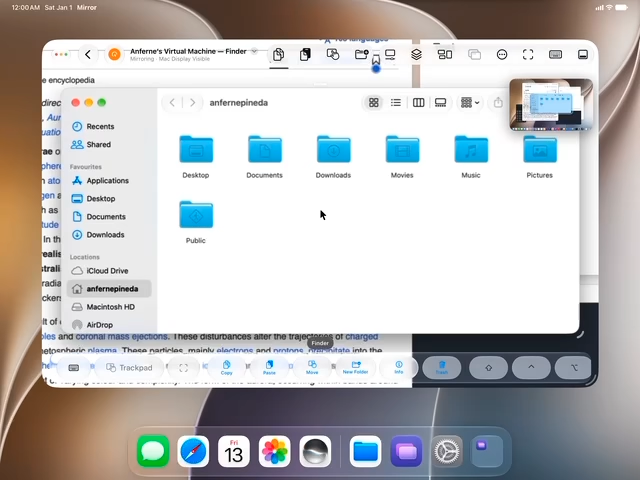
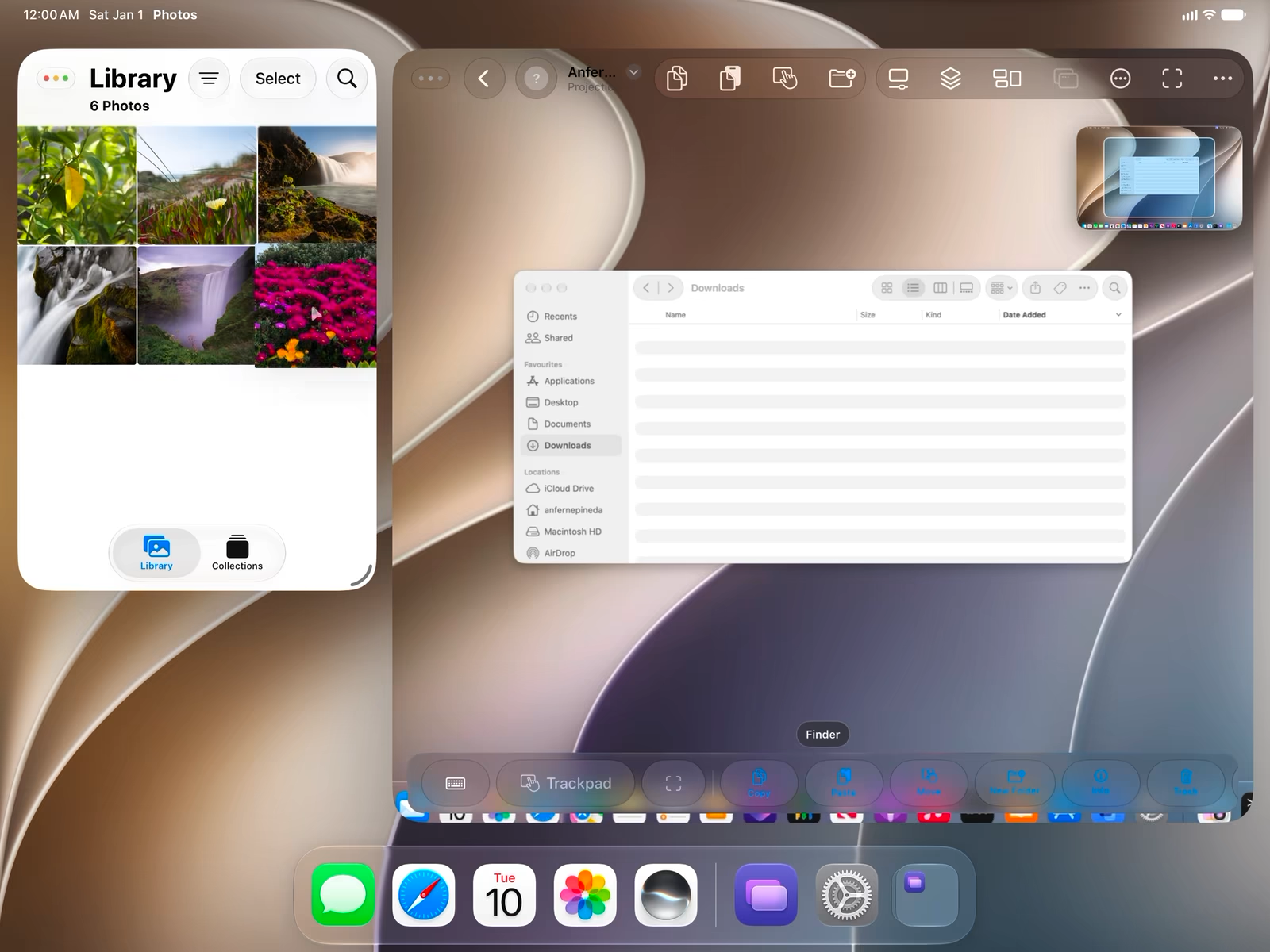
Mission ControlSwipe up with three fingers to open Mission Control. Choose a window and the view zooms in on it. Pull down past where you started to open Spotlight instead.
iPadiPad Choosing a WindowiPad Opening Spotlight
SpacesHold the app name under the screen, then pull left or right to switch Spaces.
iPad
Appearance SyncThe Mac follows your device’s light or dark appearance, even at the lock screen. When the session ends, the Mac returns to its own appearance. Changing the Mac’s appearance during a session stops the sync.
iPadiPad at the Lock Screen
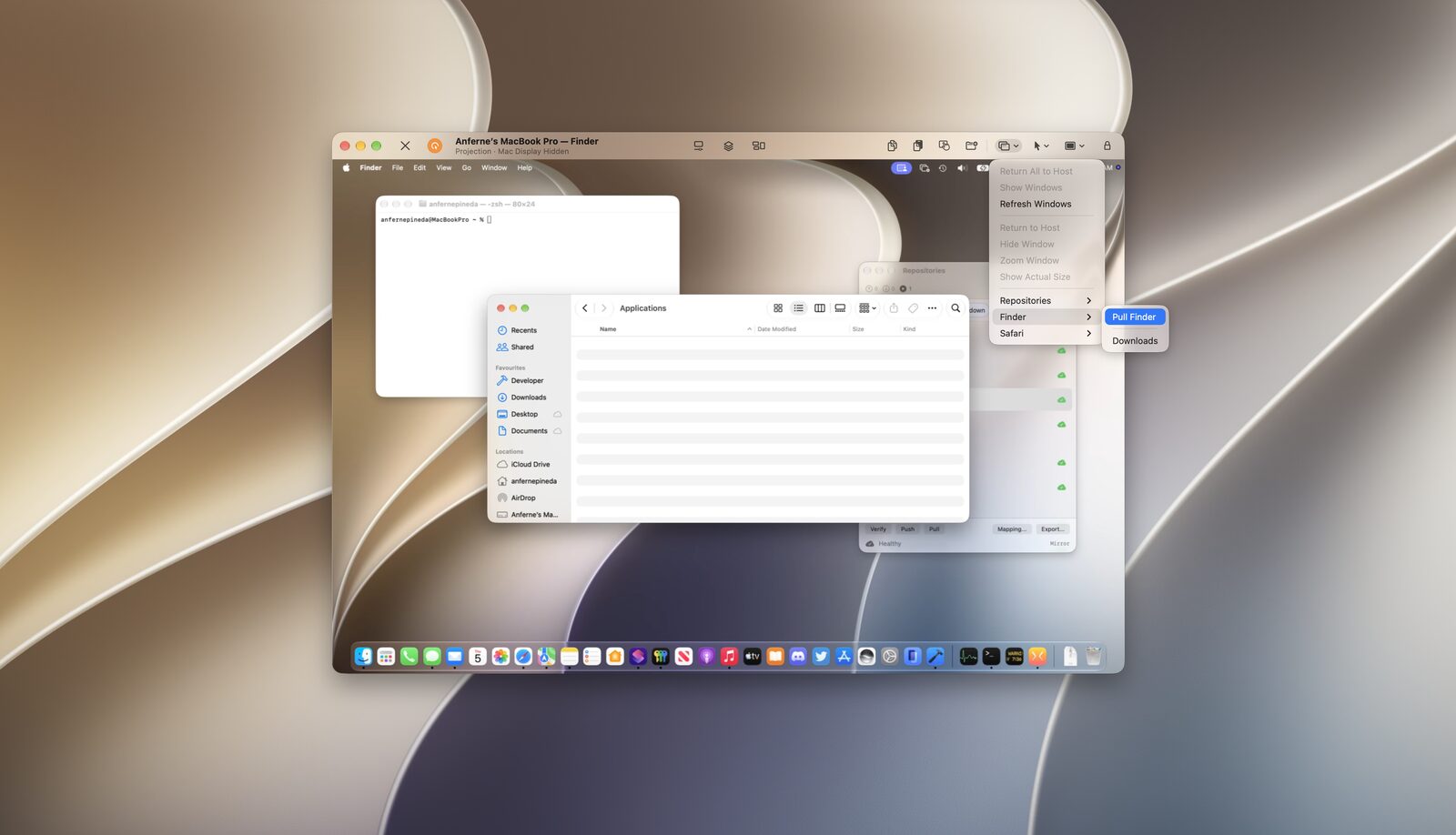
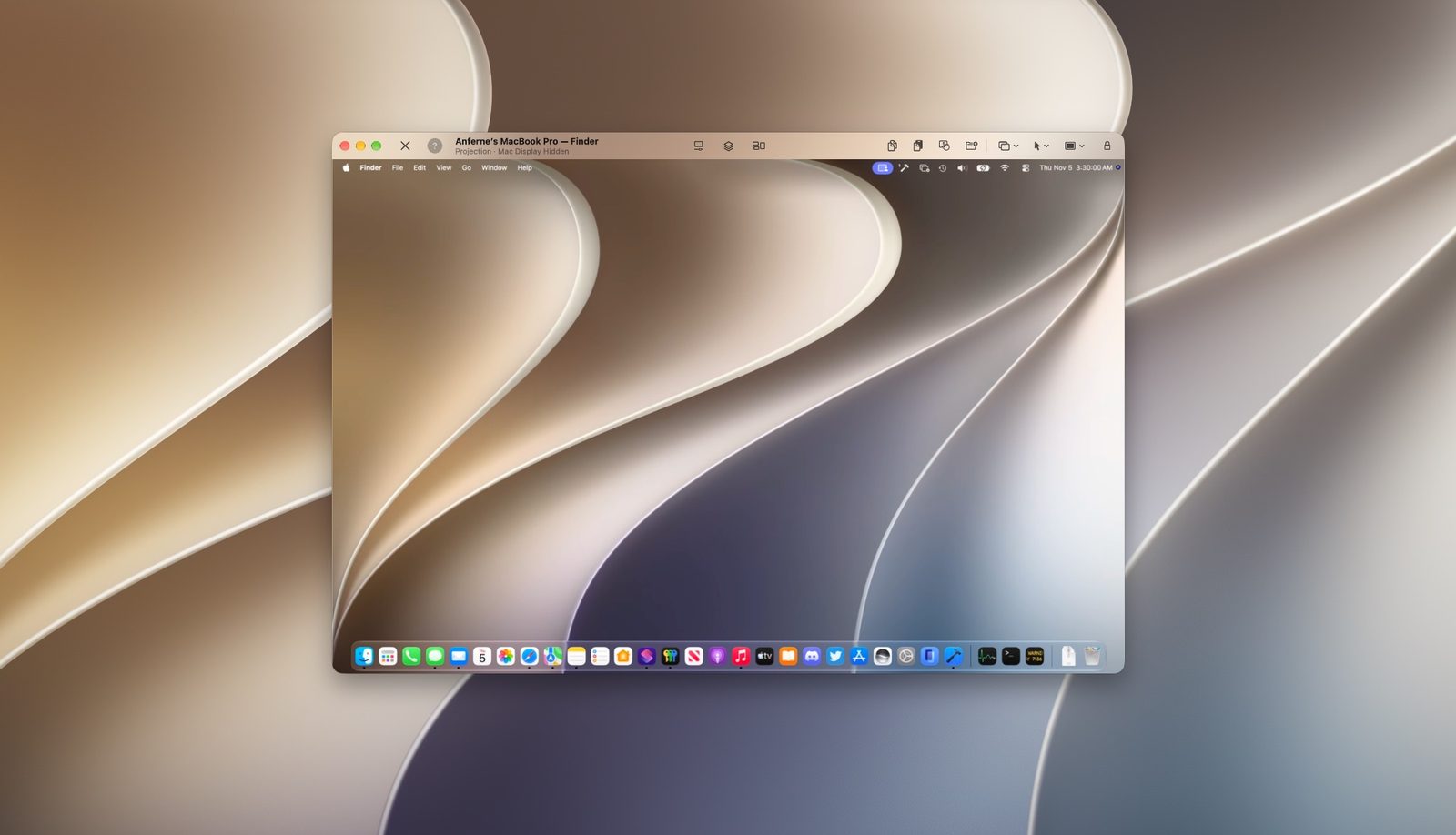
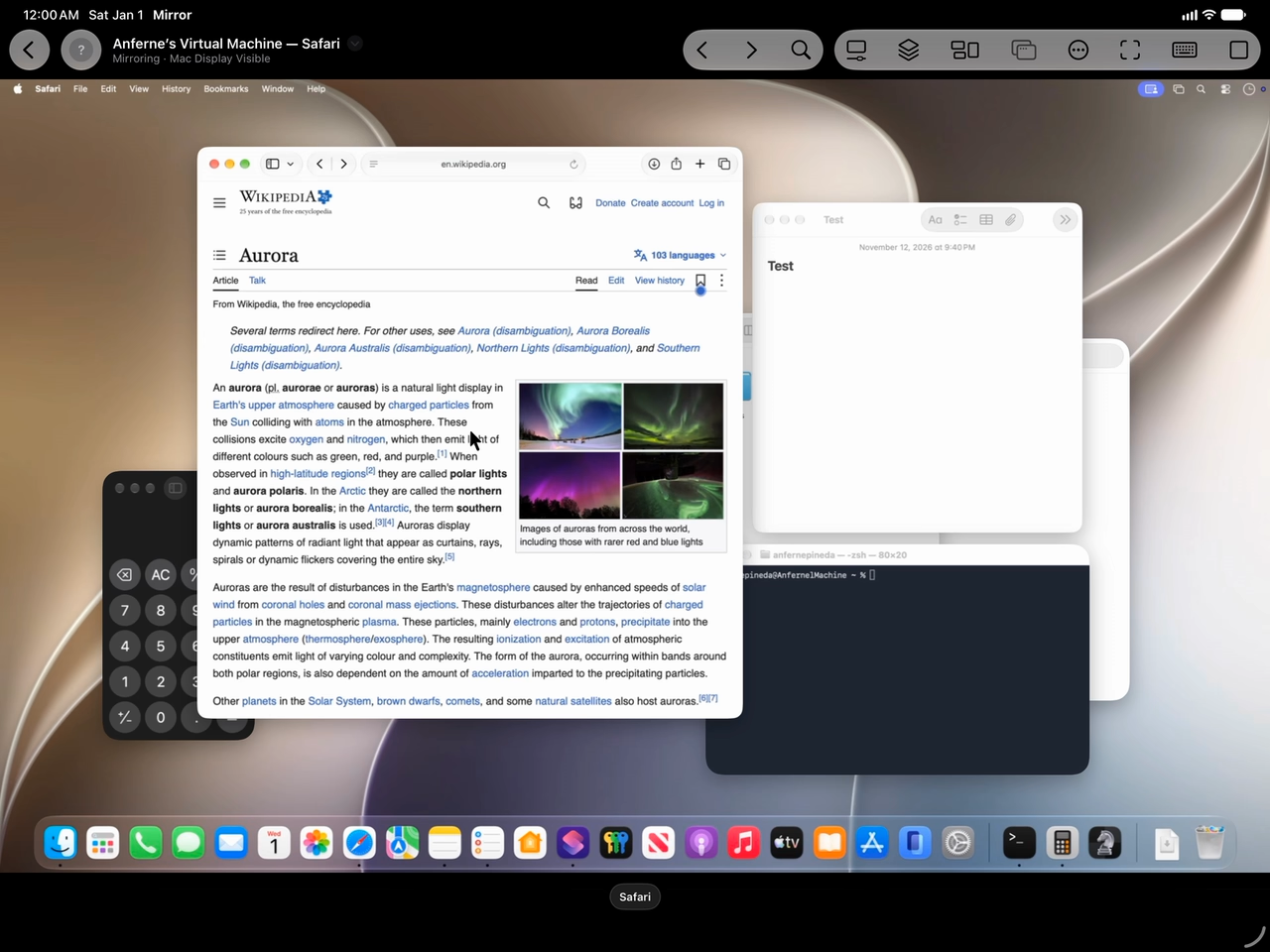
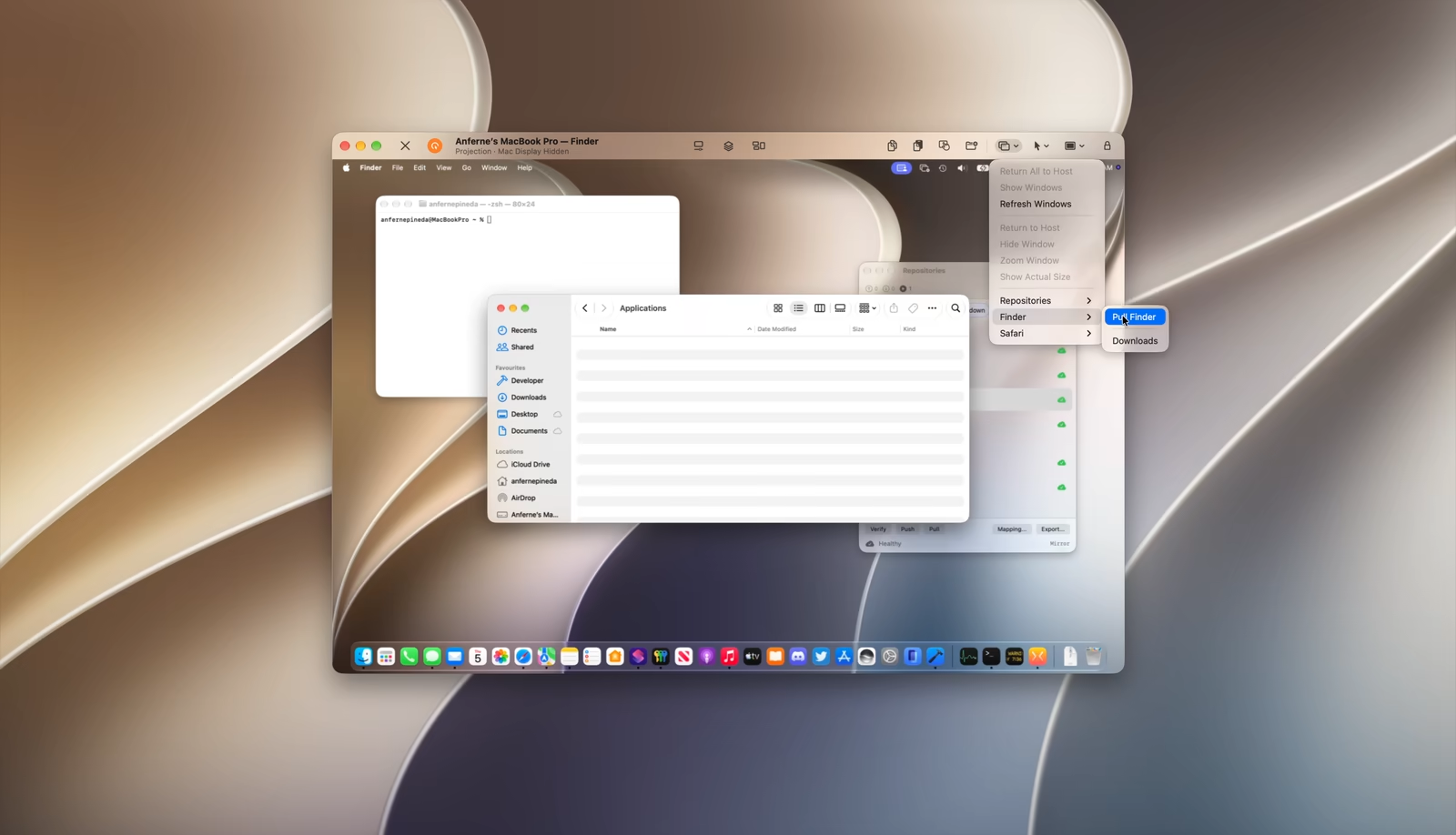
Pulled WindowsPull Mac windows into their own windows on your device, and return them when you’re done.
Mac
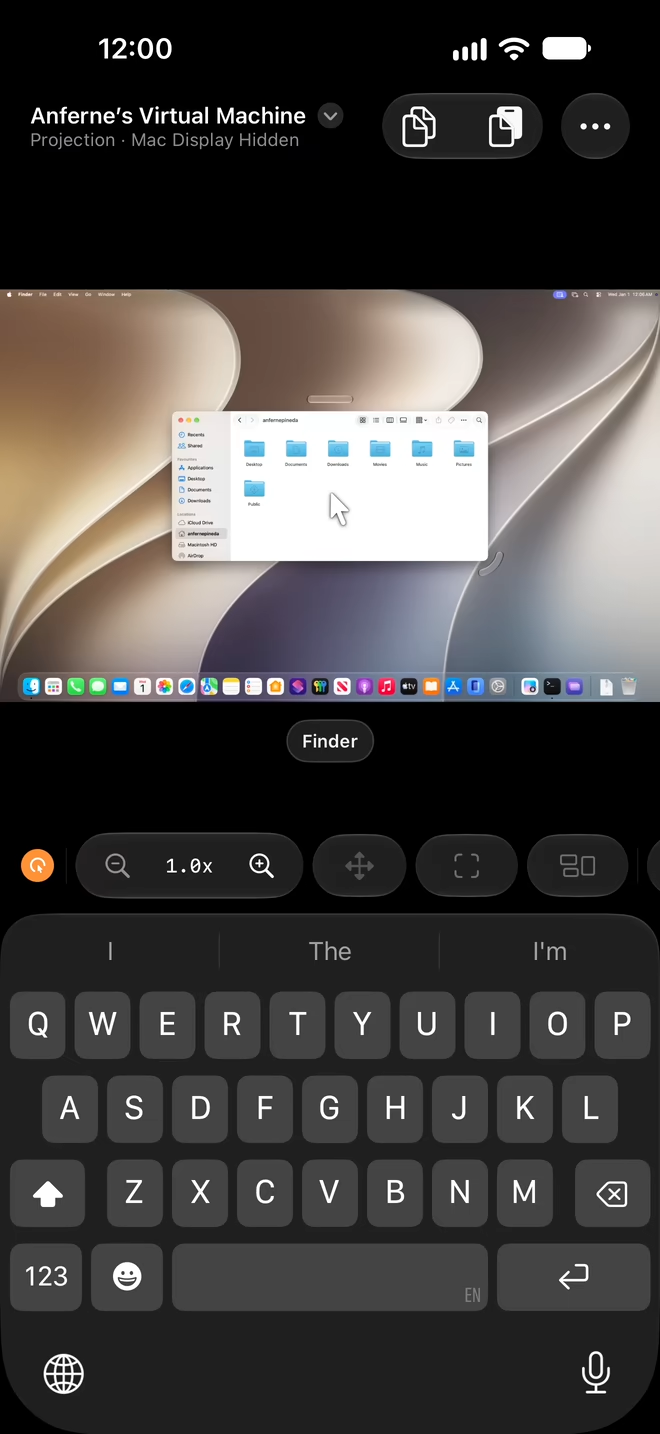
KeyboardHold Space and slide to move the pointer, then press Space to click.
iPhone
Drag and DropDrag files and text between your devices.
iPad
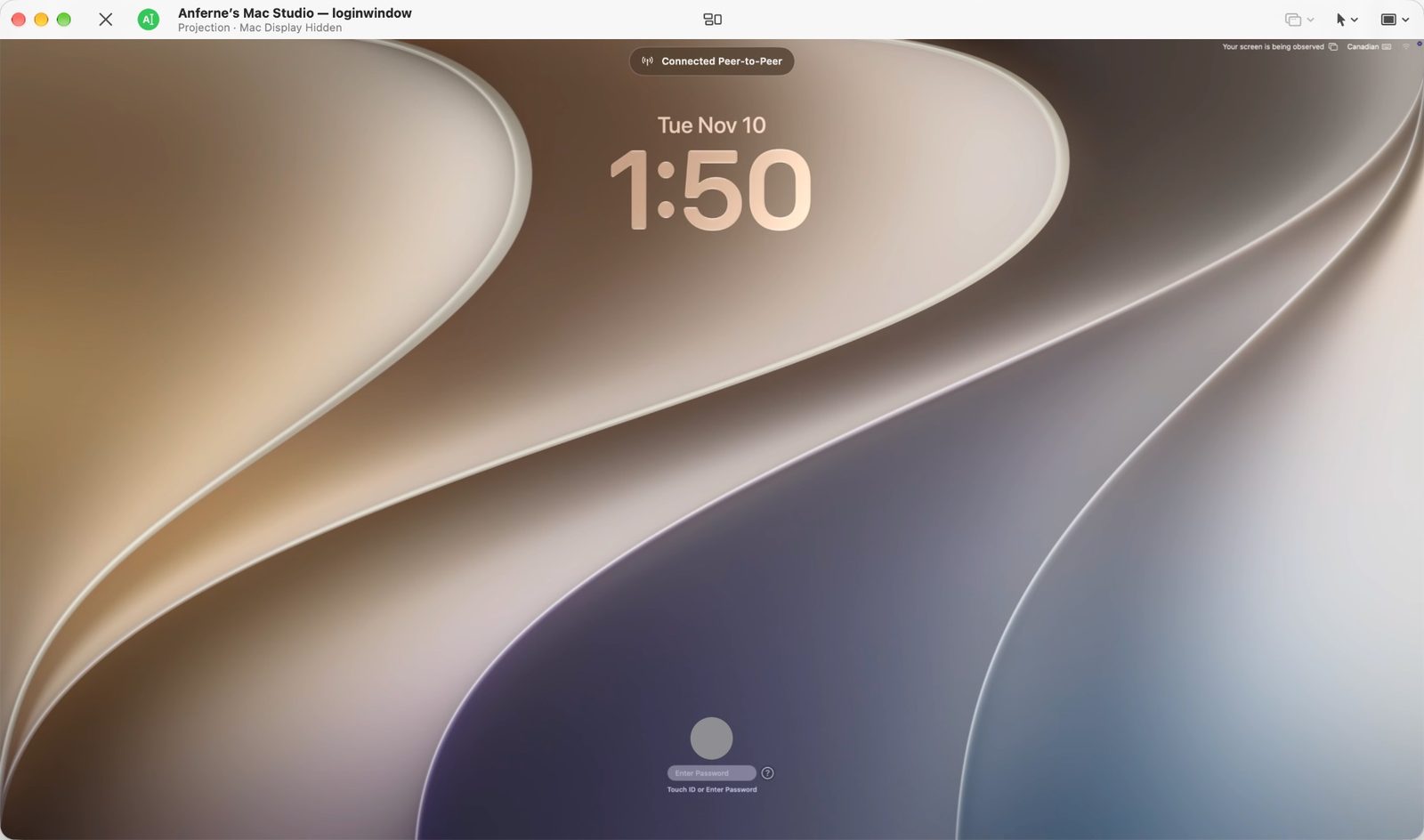
Locked AccessConnect while the Mac is locked or at the login window. Only devices you allow can connect.
Mac
Persistence
Remote viewing, control, and the Mac app are free. On iPhone, iPad, and Apple Vision Pro, an optional one-time in-app purchase keeps paired Macs and settings between sessions. Without it, they last for the current session and you pair again next time. The Mac app keeps this data without an in-app purchase.
Multi-touch gestures for clicking, scrolling, dragging, and zooming. Double-tap with four fingers to focus on the frontmost app, or with five to lock onto it. Swipe up with three fingers for a seamless, dynamic transition into Mission Control. Check out more gestures showcased in the app.
iPhone · iPad
Remote Display
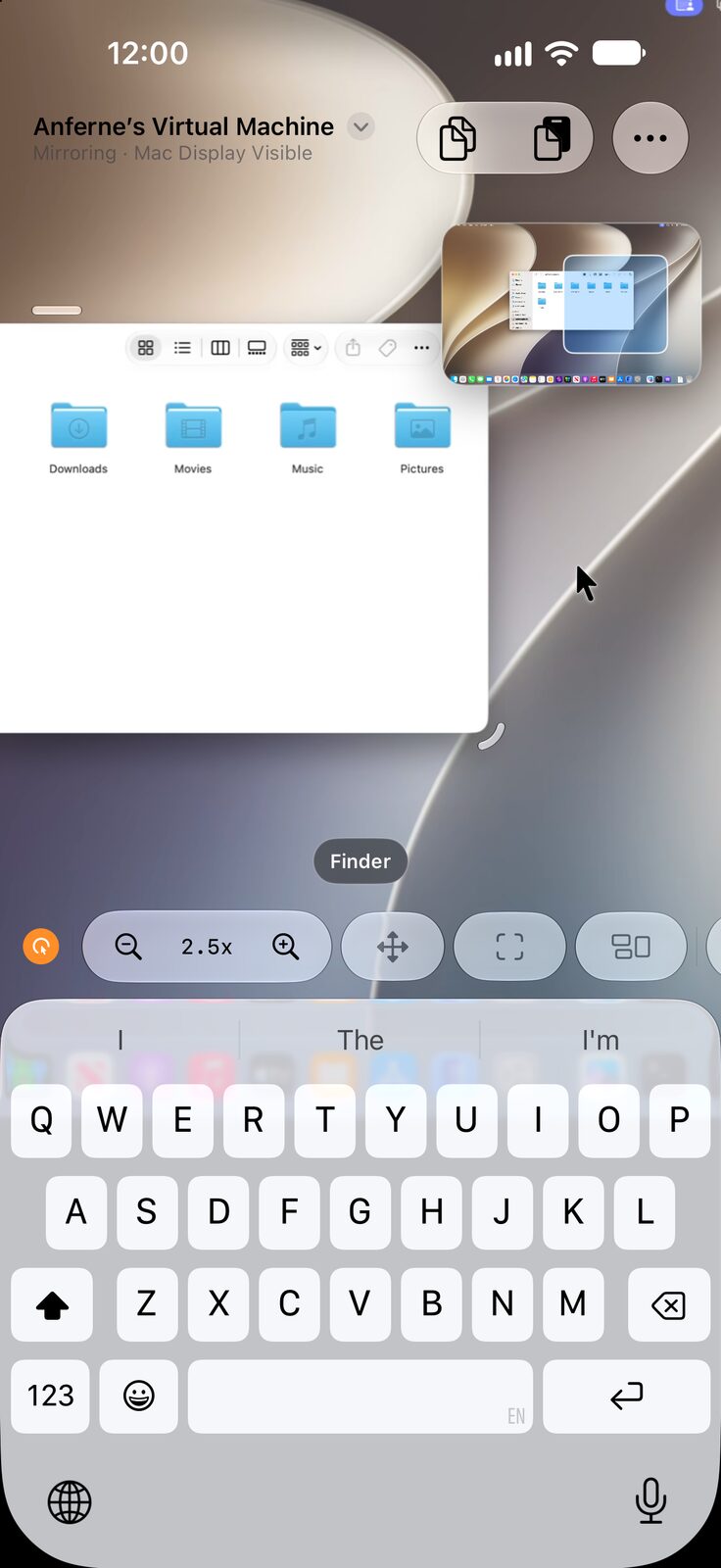
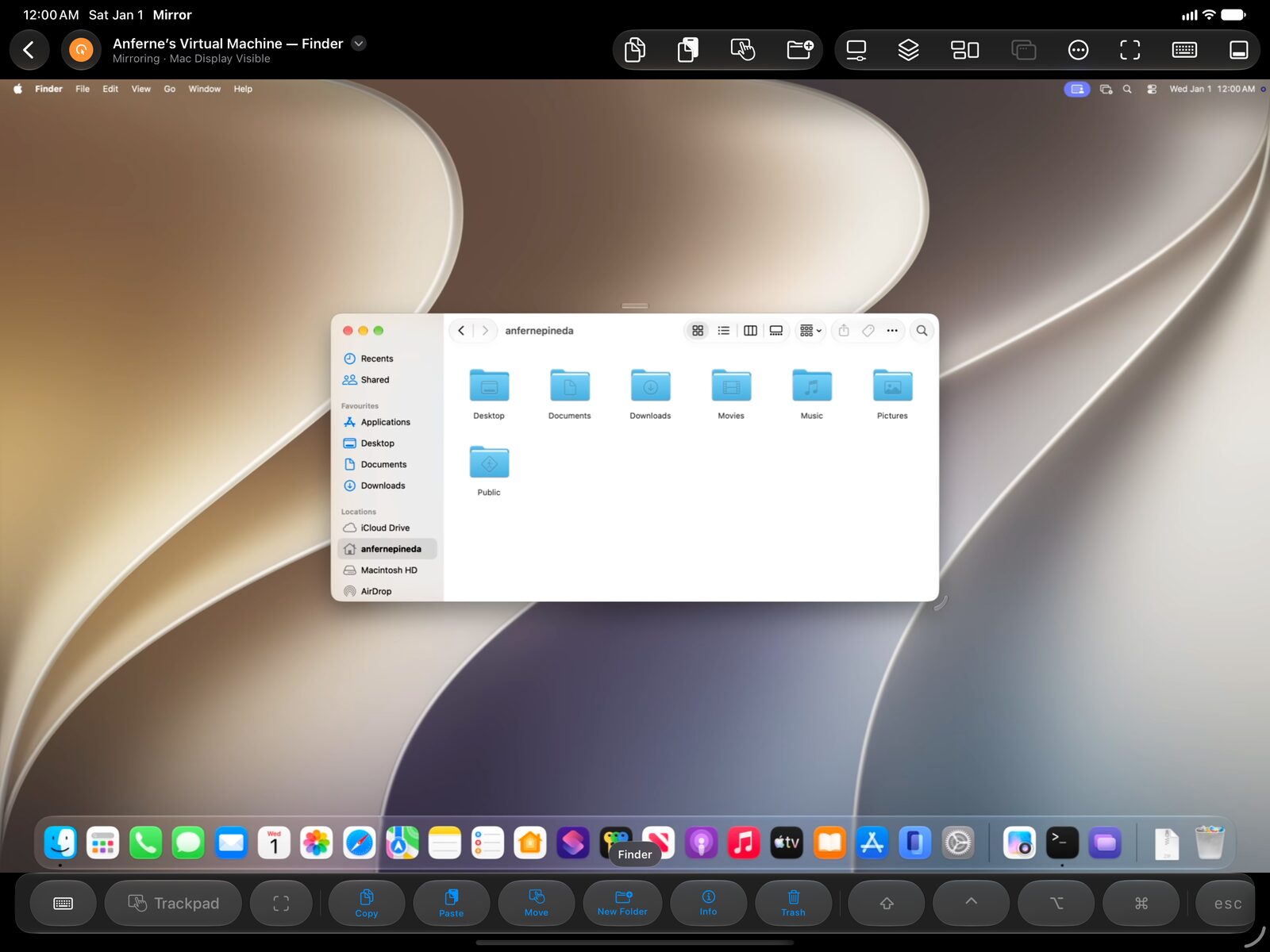
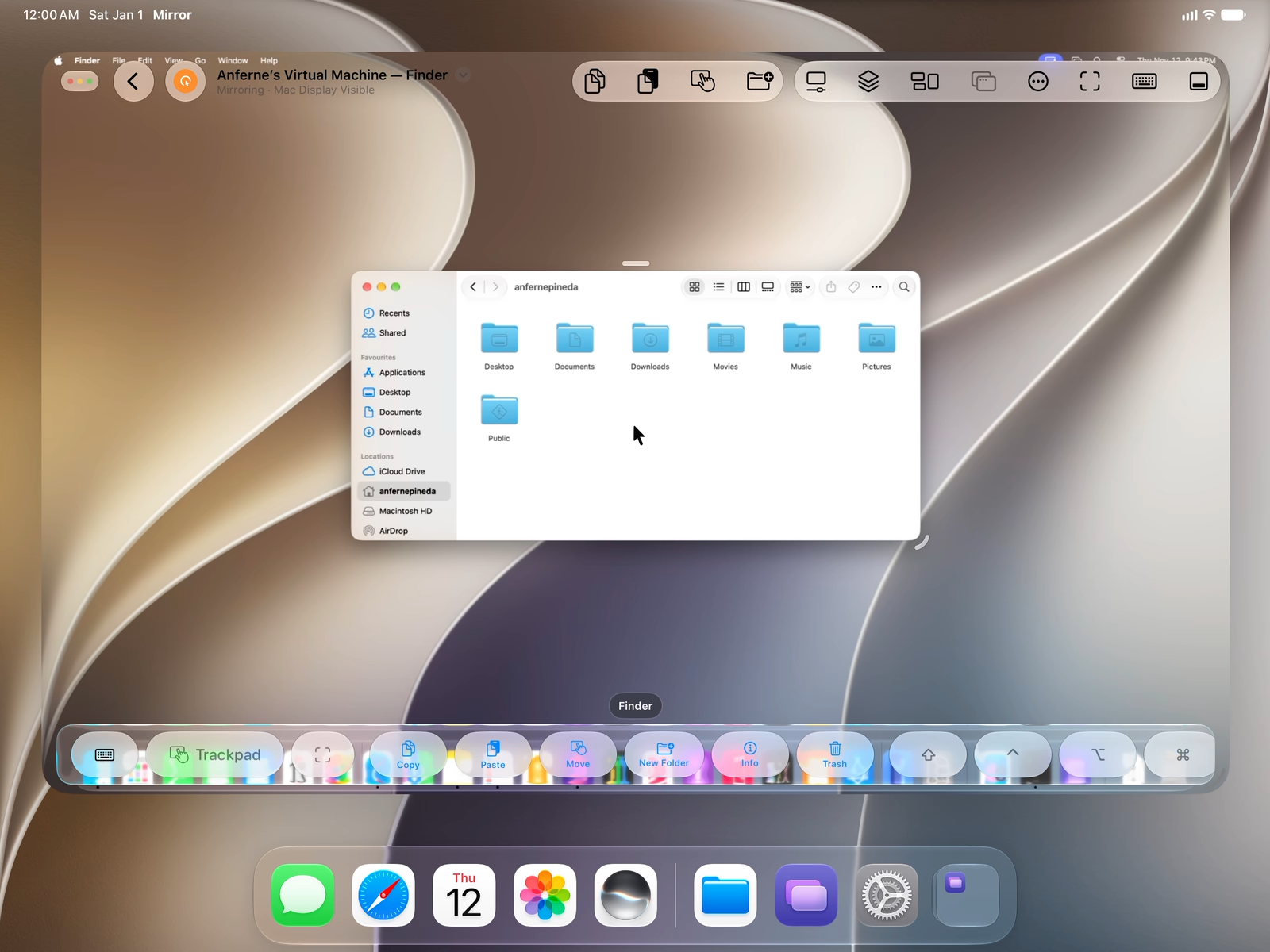
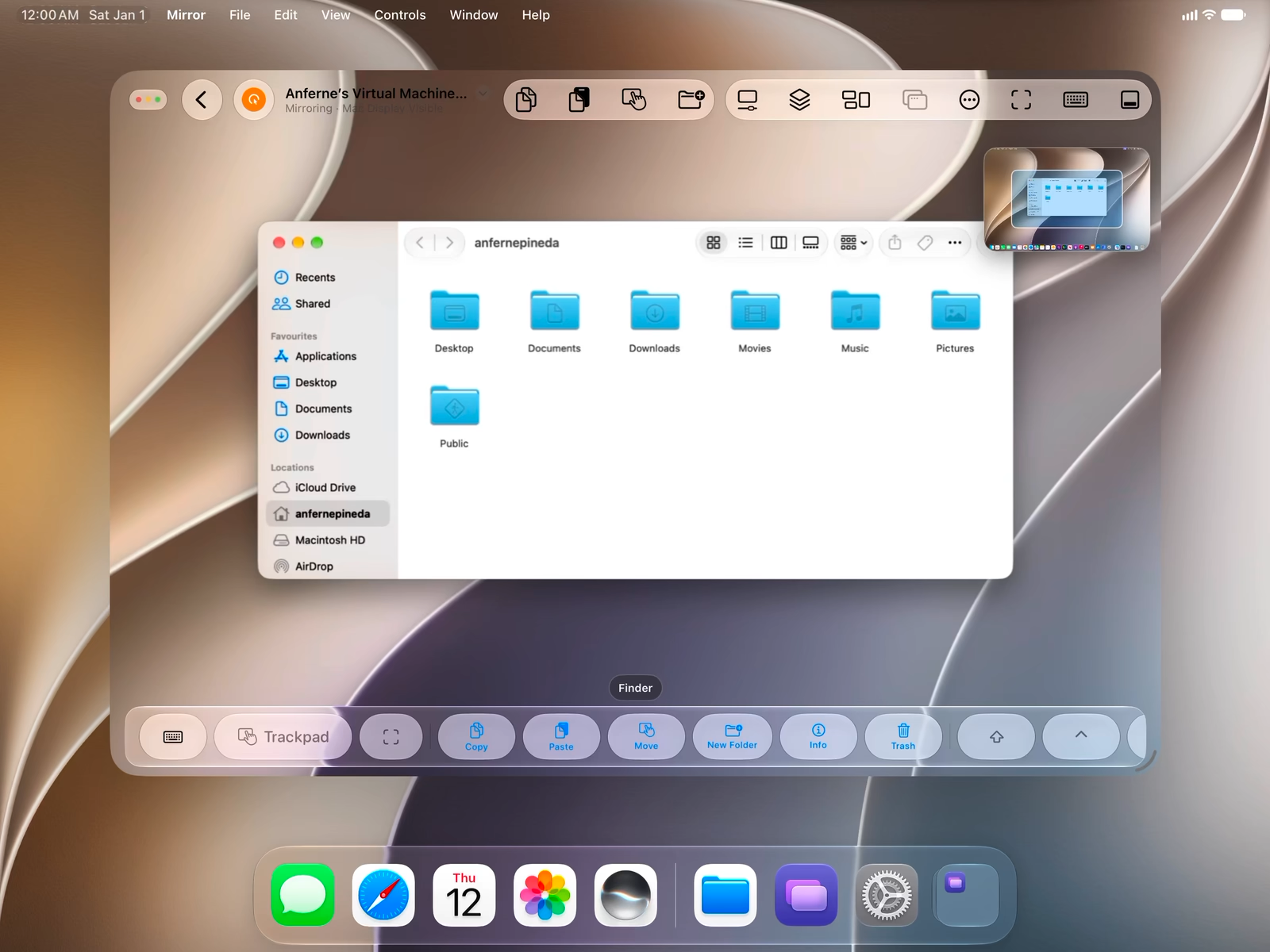
See your Mac’s screen and zoom in. A minimap of the whole screen helps you move around.
Pointer Modes
Choose Trackpad, Direct, or Hybrid control.
iPhone · iPad · Apple Vision Pro
Window Controls
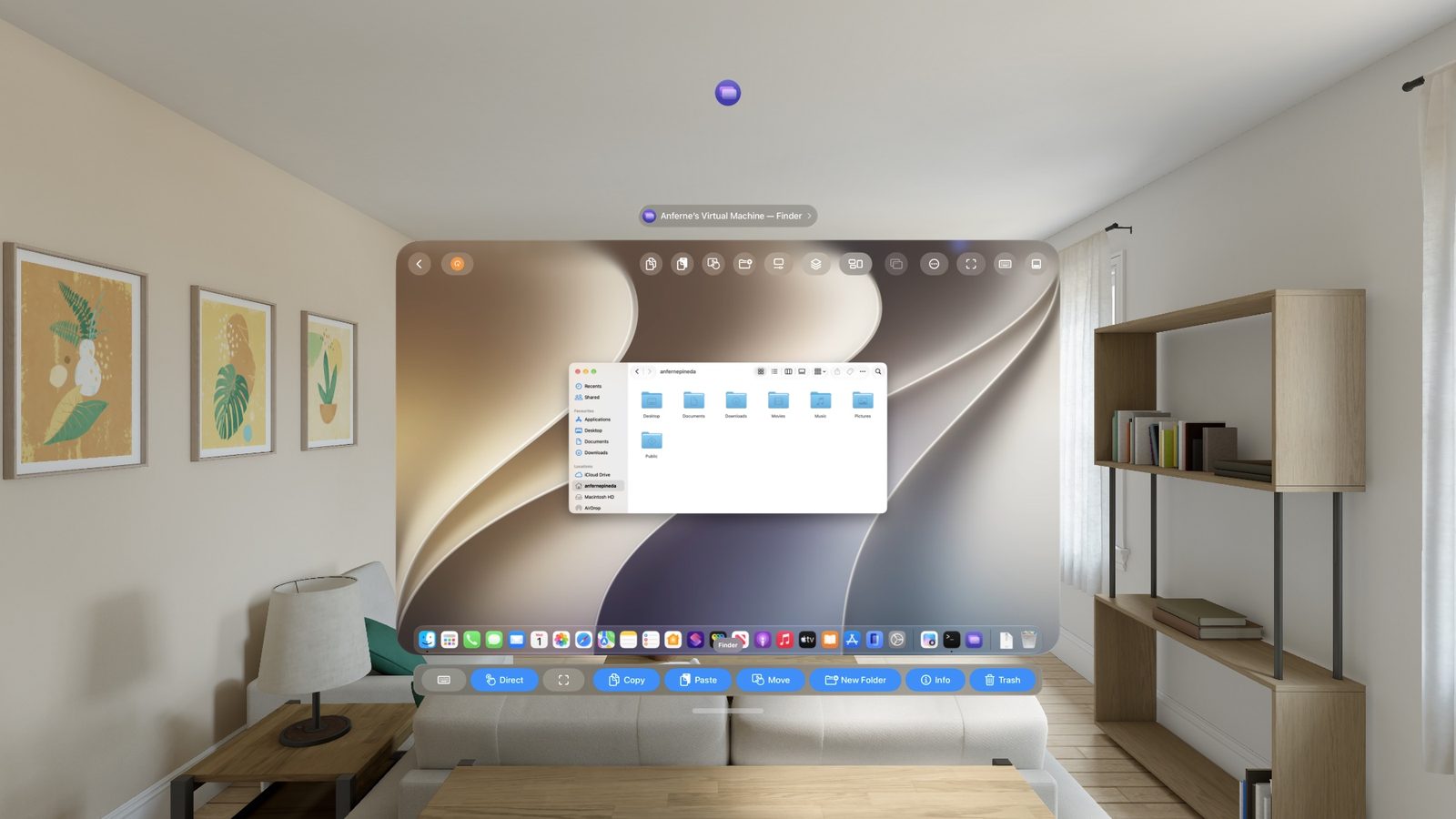
Traffic-light buttons and move and resize handles for managing Mac windows by touch.
iPhone · iPad · Apple Vision Pro
Pulled Windows
Pull Mac windows into their own windows on your device, and return them when you’re done. On iPhone, they open full screen.
Keyboard
Type with the on-screen keyboard or a connected one. On the on-screen keyboard, hold Space and slide to move the pointer. When no text field is focused, press Space to click, or press it twice to right-click.
iPhone · iPad
Modifier Controls
Latch ⇧ ⌃ ⌥ ⌘, and reach esc, tab, arrows, page keys, and function keys for brightness and media.
iPhone · iPad · Apple Vision Pro
Contextual Actions
Assign keyboard shortcuts to buttons for each Mac app. The first four appear in the toolbar.
App Switching
Switch between Mac apps without leaving the session.
Feedback
Haptic and audio feedback for touches, with optional click and key sounds. On Apple Vision Pro, feedback is audio only.
iPhone · iPad · Apple Vision Pro
Picture in Picture
Keep the Mac in a floating window when you leave Mirror.
iPhone · iPad
Audio Streaming
Stream the Mac’s audio to your device, or play it on both in sync. Off by default, and the microphone is never captured.
Clipboard and Drag and Drop
Send or get text and images, or turn on Shared Clipboard to copy on one device and paste on the other. Drag files and text between your devices.
Shared Clipboard skips passwords and other items that apps mark as concealed. Items you receive stay on that device, so Universal Clipboard doesn’t pass them on.
Screenshots
Capture the screen, a window, or a selection as PNG or HEIC, and save it to the clipboard, Files, or Photos.
Private Display
Keep the Mac’s screen covered while you work remotely, or leave it visible.
Appearance Sync
Switch the Mac between light and dark, or have it follow your device.
iPhone · iPad · Mac
Direct Connections
Pair with a short-lived invitation and a code shown on both devices. Sessions connect directly over your local network or peer-to-peer Wi-Fi, using QUIC with TLS 1.3 encryption.
Automatic Pausing
Stop listening on battery power, in Low Power Mode, or outside Wi-Fi networks you allow.
Mac
Locked Access
Connect while the Mac is locked or at the login window. Only devices you allow can connect.
Mac
Host Controls
Remove a paired device at any time, or connect to another Mac.